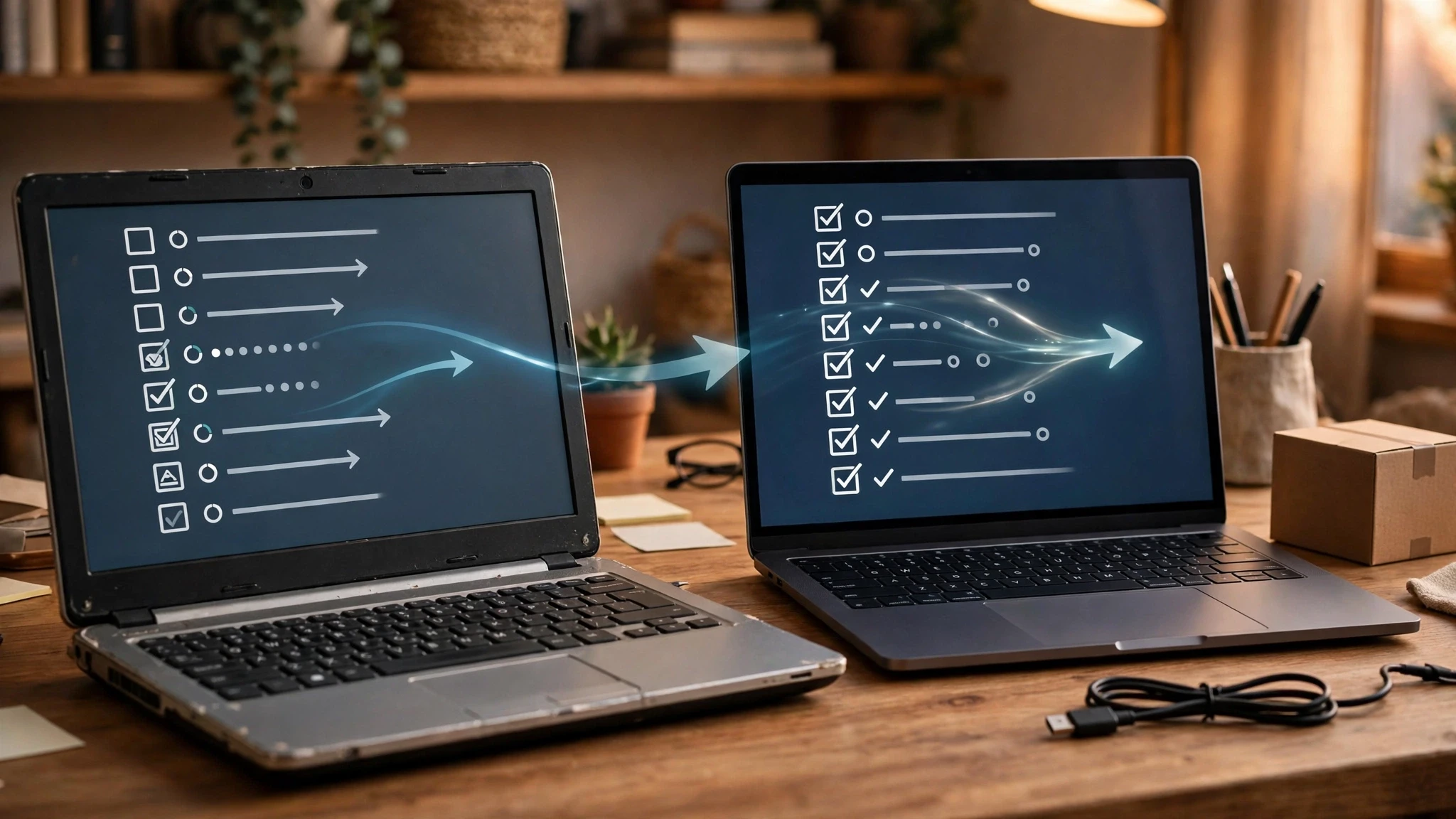
No, your chats won't follow you on their own: WorkBuddy has no real-time multi-device sync, and conversations live mainly on the local machine. The good news is that there's an official "Data import": under the same account, tasks, spaces and outputs from the old computer can be moved to the new one manually; memory syncs through the cloud, so it needs no moving. Import first, then check the counts — don't just start from scratch on the new computer.
After switching computers, what moves and what doesn't
| Item | What happens after switching computers | | Tasks, spaces, outputs | Move them manually with Data import, same account only | | Memory | Syncs through the cloud, no action needed | | Scheduled tasks | Can be imported, but must be re-enabled manually | | Skills and MCP setups | Can't be moved — reinstall them | | Tasks created on the old computer later | Won't appear automatically — import again |
Four steps to move your data: Data import in settings
First, make sure the old computer is signed in to the same account — import only recognizes the same account. Second, install the client on the new computer and sign in with that same account. Third, click your avatar at the bottom left to open settings, find Data import under "Data & Security", and the page will automatically list what can be moved from your other devices under the same account — click Import. A first real-world test moved 24 items, including 18 tasks and 6 spaces. Fourth, check the task and space counts, re-enable scheduled tasks manually, and reinstall Skills and MCP setups. Note that this is a manual move, not automatic sync: a task created later on the old computer won't show up on the new one by itself — open the import page again to top it up; repeated imports won't move things twice, the system only adds what's new. WorkBuddy also has no official one-click export for chat history — to keep a local copy of conversations you can only use third-party export tools, so evaluate them yourself before using one; sessions on the cloud computer are separate from the desktop client and won't sync with each other either. Tasks assigned to WorkBuddy inside WeChat Work run on a cloud agent and aren't affected by switching computers, but that's a different path. Want to keep chatting from your phone? Remote continuation works — how to connect WorkBuddy on your phone to your computer covers the steps; and whether scheduled tasks keep running after shutdown depends on local vs cloud, so can WorkBuddy's scheduled tasks still run when the computer is off — tell the two apart before deciding.