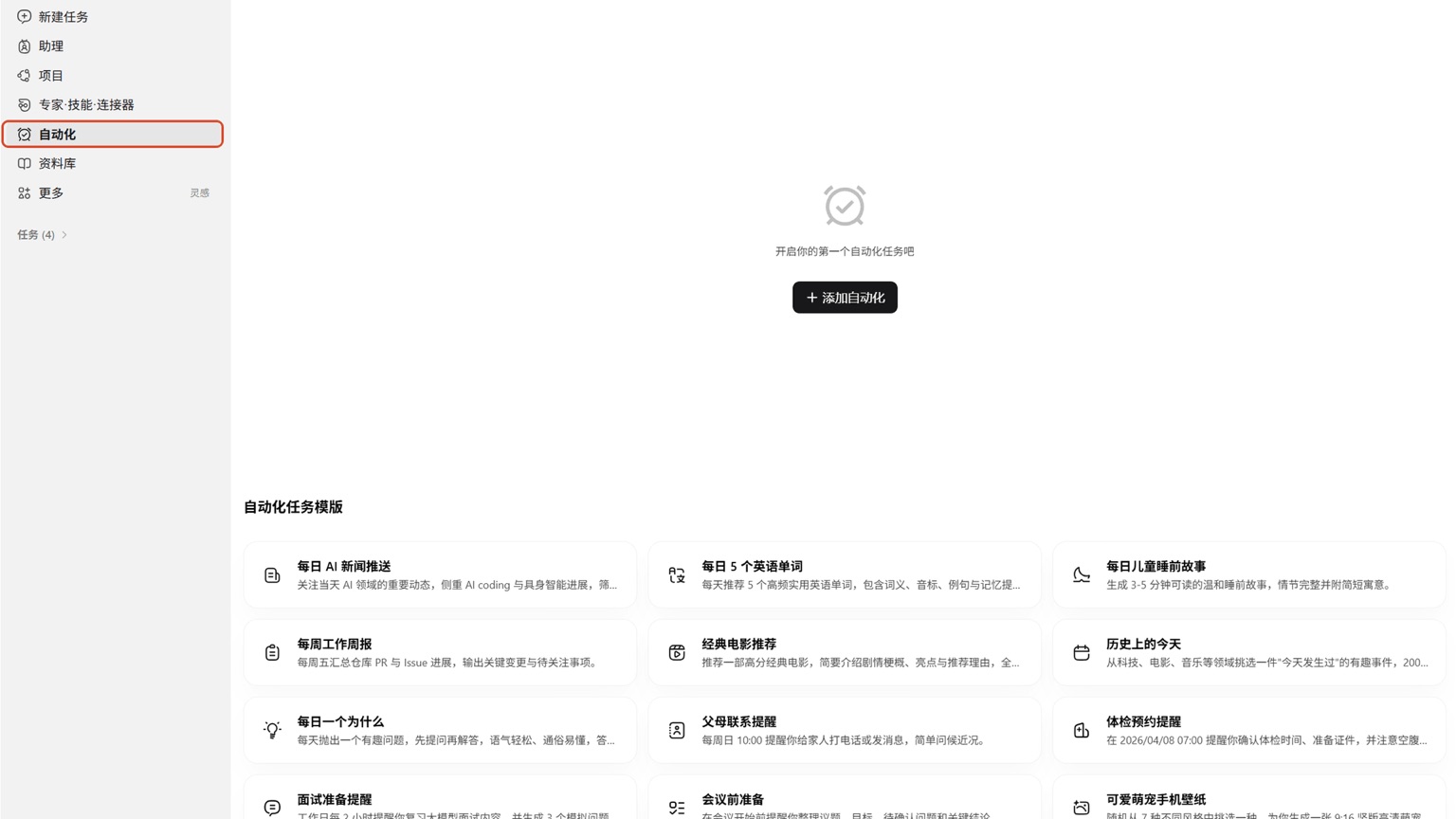
Whether WorkBuddy scheduled tasks can continue after the computer shuts down depends on where the task runs: the desktop "Automation" is saved locally and triggered by the current login identity; when the computer is shut down or the client is not running, local files and tools cannot be accessed normally; Cloud scheduled tasks created in the cloud mode of mini programs do not rely on a personal computer startup, but they cannot directly use files, programs, and login environments that exist only on the machine.
First, determine what the task depends on
If you need to organize local Excel, scan designated folders, run scripts on your computer, or call tools configured only locally, desktop automation should be chosen, and the computer should remain powered on, connected to the internet, and WorkBuddy running during trigger time. If you only perform public information aggregation, cloud data processing, or fixed reminders, and do not rely on the local environment, cloud tasks can be considered.
There is also a type of hybrid task that is prone to misjudgment: the task retrieves data from a web page or connector but ultimately writes it to a local directory. This is still a local task because the delivery process depends on computers. Conversely, the results only need to be pushed to the WorkBuddy mini program or WeChat Work, and the required data can be obtained through the cloud connector, making it suitable for full cloud operation.
How to set up local automation for more stability?
When creating a task, write the name, prompt, workspace, model or skill, permission mode, and timing rules all at once. The same task should be executed on Mondays, Wednesdays, and Fridays, and merged into one rule; do not duplicate three tasks. For the first time, run manually or set to low frequency, confirm the output directory, file name, and data caliber, then increase the frequency.
Unattended tasks should prioritize default permissions and place input copies and output directories in separate workspaces. Prompts should clearly state "which files to read, what to generate, whether overwriting is allowed, and how to record failures." Tasks involving deletion, batch renaming, external sending, or fund operations are not suitable for enabling full access in unattended mode.
If it doesn't run on time, check according to this checklist
- Check if the task is enabled, and whether the effective date, week, and time are correct.
- Make sure the computer is not shut down or hibernating, WorkBuddy is still running, and the account has not been logged out.
- Check whether the workspace has been moved, and whether the selected skills, models, and connector licenses are still valid.
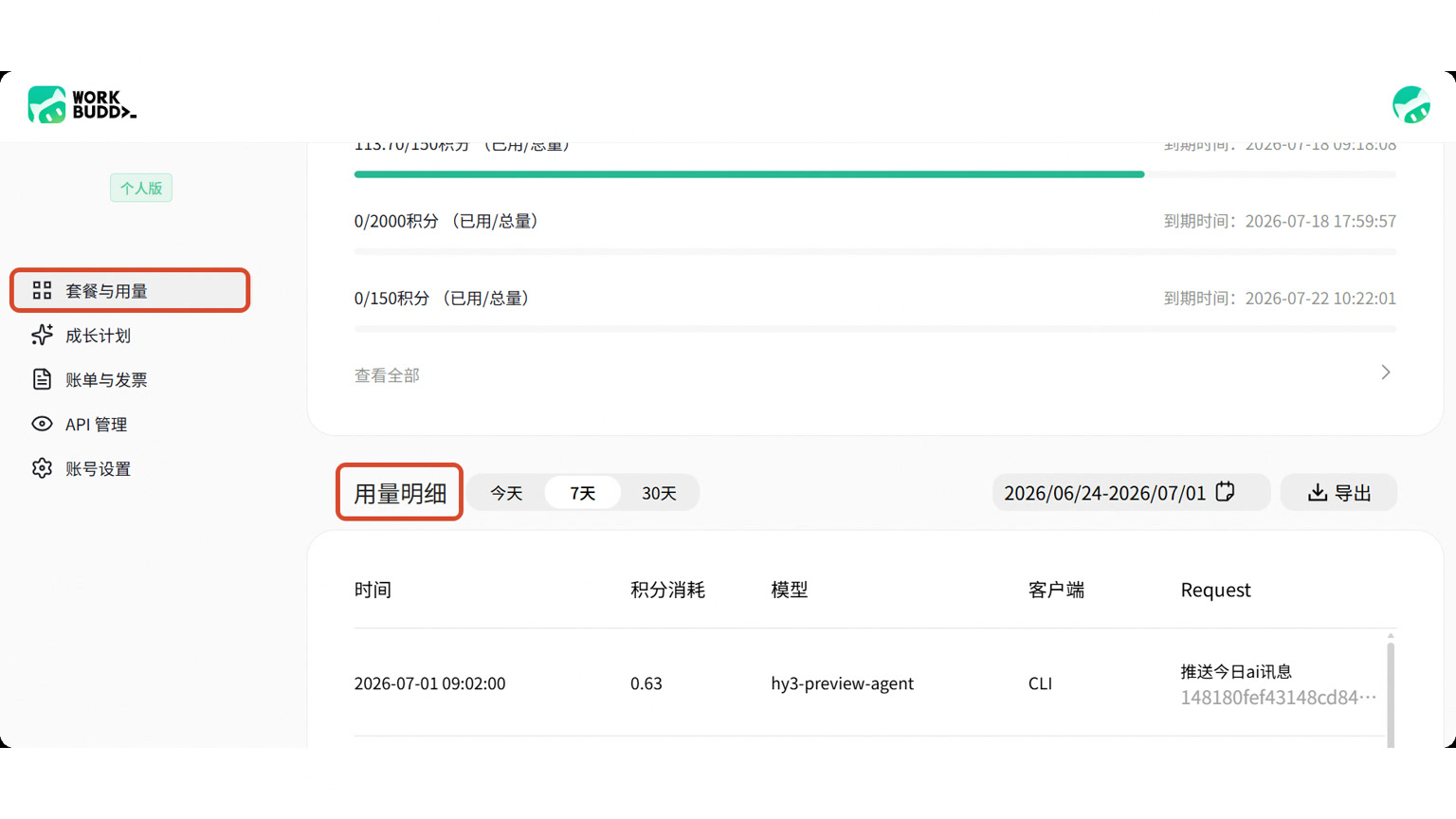
- Check the runtime: No trigger record is usually due to scheduling or client status issues; If there is a record but it fails, it is identified as an error by access, points, or external services.
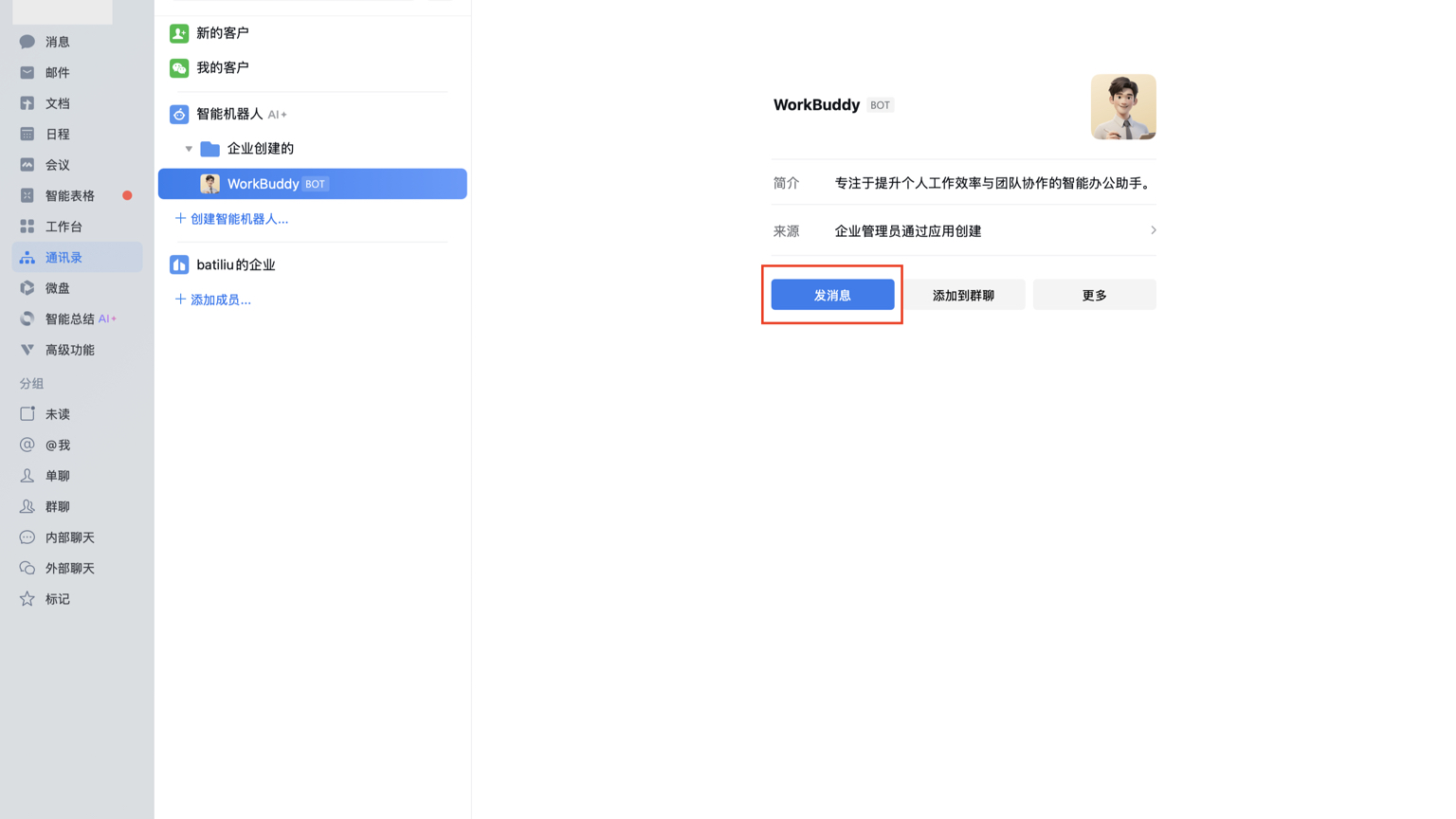
- Notifications not received do not mean the task was not completed. An error in WeChat Work credentials may only cause the push to fail and may not necessarily block the task itself. First, check the local results and execution records.
If you need to run after a real shutdown, turn the task into a cloud-based process that doesn't rely on local resources; Otherwise, the most reliable approach isn't to "bet it's still running in the background," but to keep the computer online and keep traceable records of the runtime.