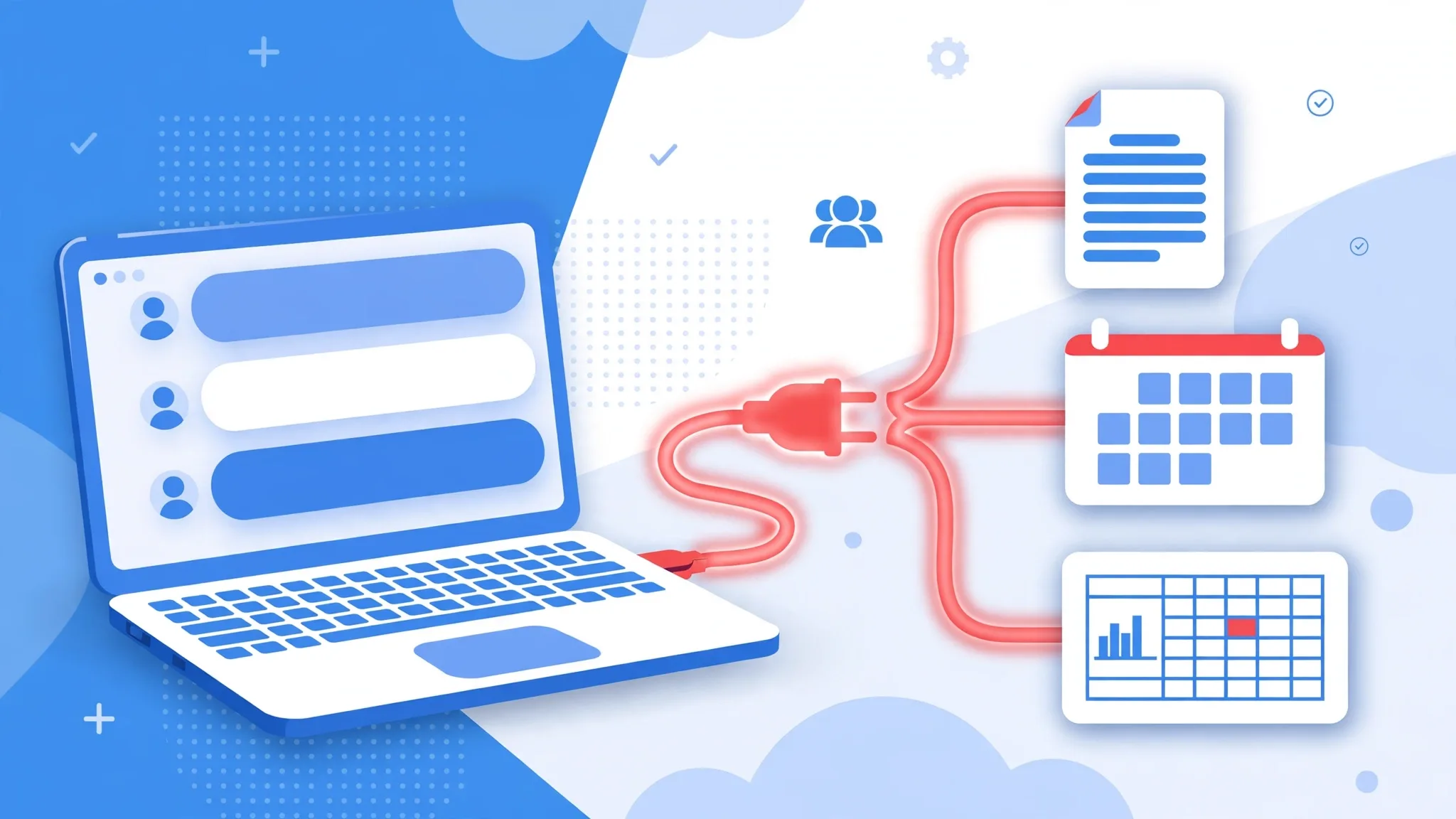
Connecting WorkBuddy to Feishu uses the official connector and takes five steps: find the Feishu connector in WorkBuddy, jump to the Feishu Open Platform to create an app, enable it and authorize it, then come back and turn the connector on from the + at the bottom left of the chat. Permissions follow your own Feishu account — it won't reach into confidential documents you can't access.
Walk through the five steps and don't skip the authorization check:
- In WorkBuddy, open "Experts · Skills · Connectors" on the left and click + next to Feishu.
- Jump to the Feishu Open Platform and create an app.
- Enable the connector there and complete the authorization.
- Go back to the WorkBuddy chat and click + at the bottom left.
- Turn on the Feishu connector, and confirm you can read group chats and documents before you start using it.
What you can do once it's connected
Once connected, you can read group chats, documents, knowledge bases, calendars, and multi-dimensional tables — and also create documents, schedule meetings, send notifications, and even build PPTs together with tools on your computer. Run a small test first: ask WorkBuddy to read a Feishu document you know you have access to, then have it schedule a test meeting. If both work, the authorization is fine; if a document can't be read, check its sharing settings in Feishu first instead of reinstalling the connector over and over. Keep personal and public authorization apart: personal authorization represents only you, while public authorization is shared by the team — don't hang team documents on a personal account, and confirm the scope with your admin first.
Don't confuse it with the connection running the other way
There's also a reverse connection: sending tasks to WorkBuddy right from a Feishu chat window. That uses the IM assistant, configured under Settings → Assistant Settings → Feishu, and it needs an enterprise-built app, bot capability, an App ID and Secret, and callback configuration. The two connections run in opposite directions, so mixing them up means it will never connect. The same logic applies to other apps: connecting the WeChat assistant also starts by linking the account and then turning on the connector, while connecting Tencent Docs starts with authorization and then confirms the scope for quoting and writing back.