When AI cutouts look blurry at the edges and hair will not come out clean, the problem often starts with the source photo: a cluttered background, poor light, or hair that is almost the same colour as the background. First tell whether it is a photo problem or a tool problem, then decide whether to change the photo or the method. A photo with a clean background and even light often gives clean edges in one pass, while switching tools again and again only wastes time.
Blurry edges usually start with the source photo
When the background is full of objects, or the person and the background are close in colour, the algorithm struggles to tell where the boundary is. Backlight, underexposure and a photo that is already soft can also blur the edges. Switching tools will not help in that case, because the photo has already lost the information. A low-resolution photo is the same: once enlarged, its edges are blurry by themselves and no tool can restore the missing detail. If you can retake the photo, do so: use a plain or simple background, keep the person clearly separated in colour from the background, light the face well, and make the outline of the hair clear before cutting it out again.
The wrong tool blurs hair edges most easily
Some tools are only suited to subjects with clear outlines and hard edges. Use them on hair, wedding veils or plush toys and they often fail. If the edges stay blurry after trying two or three tools with the same photo, do not blame the photo first. Try a cutout tool with hair handling or edge refinement. When choosing a tool, check whether it shows examples with fine edges such as hair or fur, and only try your own photo with a tool whose examples look clean. After cutting out, zoom in to check the result locally instead of judging from a thumbnail. A thumbnail may look clean while the enlarged edge still carries a ring of stray colour.
For hair and fine edges, zoom in and refine rather than redoing the cutout
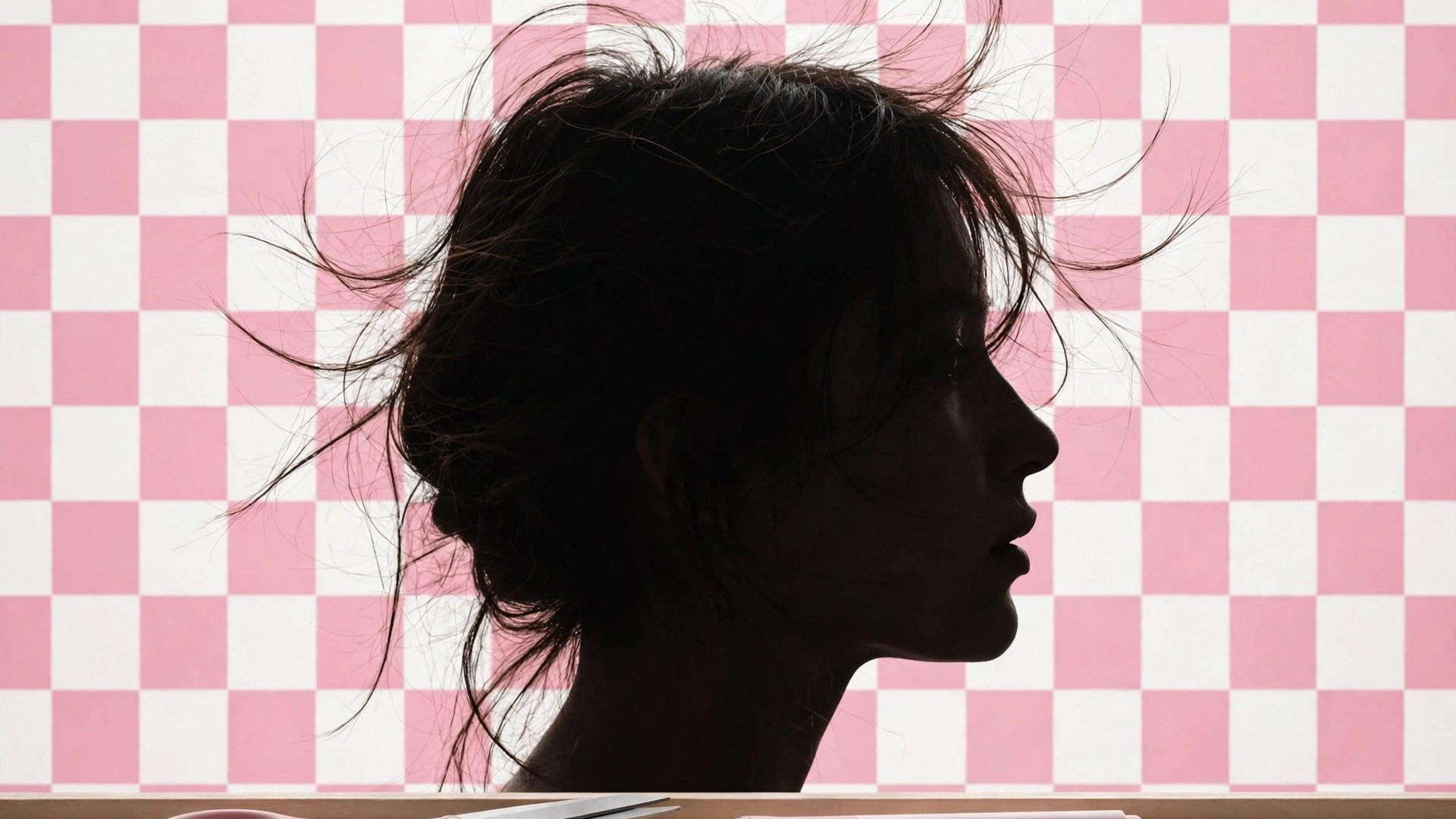
Hair is the hardest part: the strands are fine and numerous, and often close in colour to the background. After cutting out, zoom in until you can see individual strands, and clean blurry edges little by little with edge refinement, feathering or an eraser. Do not erase too much at once; working in small steps preserves the layers of the hair more easily. If fine strands simply will not come out, use a dedicated hair-refinement feature, or paint a few strands in by hand to create a transition; from a normal viewing distance it often looks more natural. The same applies to translucent veils and glass edges: do not expect a perfect result in one pass, and a soft transition usually looks better than a hard cut.
Before exporting, check the result against three backgrounds
Before exporting a PNG, place the cutout on white, black and coloured backgrounds in turn. Problems invisible on white often show up at once on black: stray colour at the edges, leftover background and unremoved strands of hair all become visible. Go back to the refinement step when you find a problem, fix it, and check against another background until the edges look clean on all three. Photos with extremely fine hair or translucent veils are hard to get perfect in one pass, so working step by step gives a steadier result than cutting out again and again.