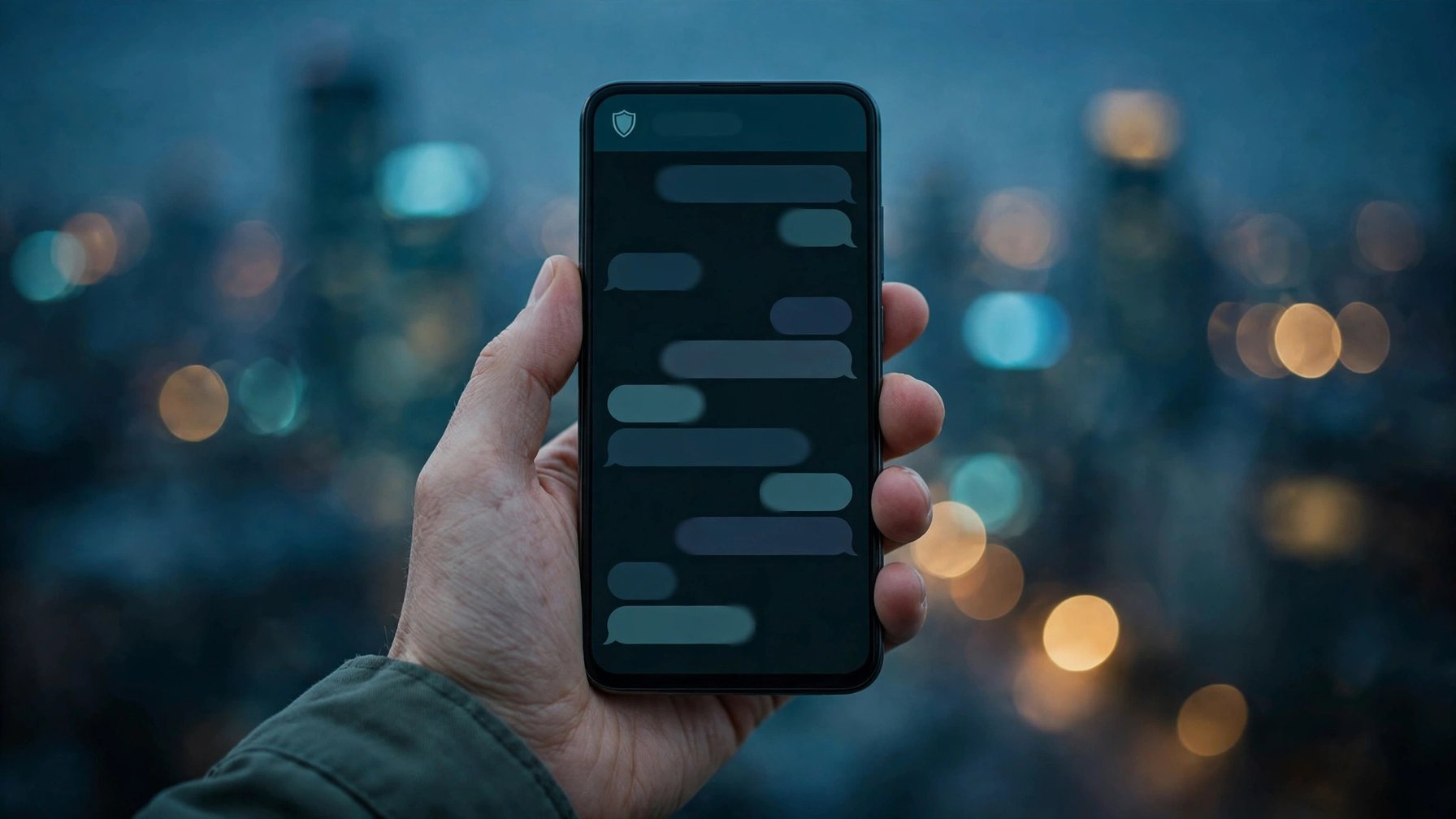
Signal now blocks screenshots by default to stop system-level AI assistants from reading your chats: Siri AI on iOS 27 and Google Gemini Intelligence on Android can both read the screen and take screenshots, then extract chat content with OCR. Signal's official blog, signed by president Meredith Whittaker, announced this protection on November 20, 2026. But first, a common misunderstanding to clear up: it is not "on by default" on every device — it is on by default on iPhone, it turns on automatically on Android only when an AI assistant is detected trying to read the screen, and macOS has no equivalent protection at all.
iPhone, Android and Mac are each different
On iPhone, Signal 8.37 and above on iOS 27 and above adds a "Block Siri AI" setting that is on by default. Once on, you cannot take screenshots or record the screen inside the app, and chat content does not appear in the app switcher. You can turn it off in settings, or turn it off for just 10 minutes.
On Android, Signal 8.35.1 and above reuses "Screen security", found in Settings, Privacy and App security. It is not on by default when installed; instead, it turns on automatically the first time an AI assistant is detected trying to read the screen, with a pop-up explaining why — and you can also turn it on manually in advance. Some Android versions cannot detect screen-reading attempts, so the protection may never trigger.
On macOS there is no equivalent protection, as Signal says it lacks the necessary developer tools. The official advice for macOS 27 users is to add Signal to "System Settings, Siri, Excluded Apps" so Siri does not read it.
What it cannot block
Screenshot blocking cannot stop AI from getting content through other routes: notifications, the file system and accessibility permissions can all become entry points. A Reuters test on November 18, 2026 found that Meta's Muse had read Signal content through notifications and accessibility permissions. And if the other person turns the protection off, your setting being on will not stop reading on their device.
Should you turn it off? You can, but Signal warns clearly: turning it off exposes your messages and your contacts' messages to AI assistants. When you need a screenshot, the "turn off for 10 minutes" option is the safest choice — it restores itself automatically, so you do not have to remember to turn it back on.