
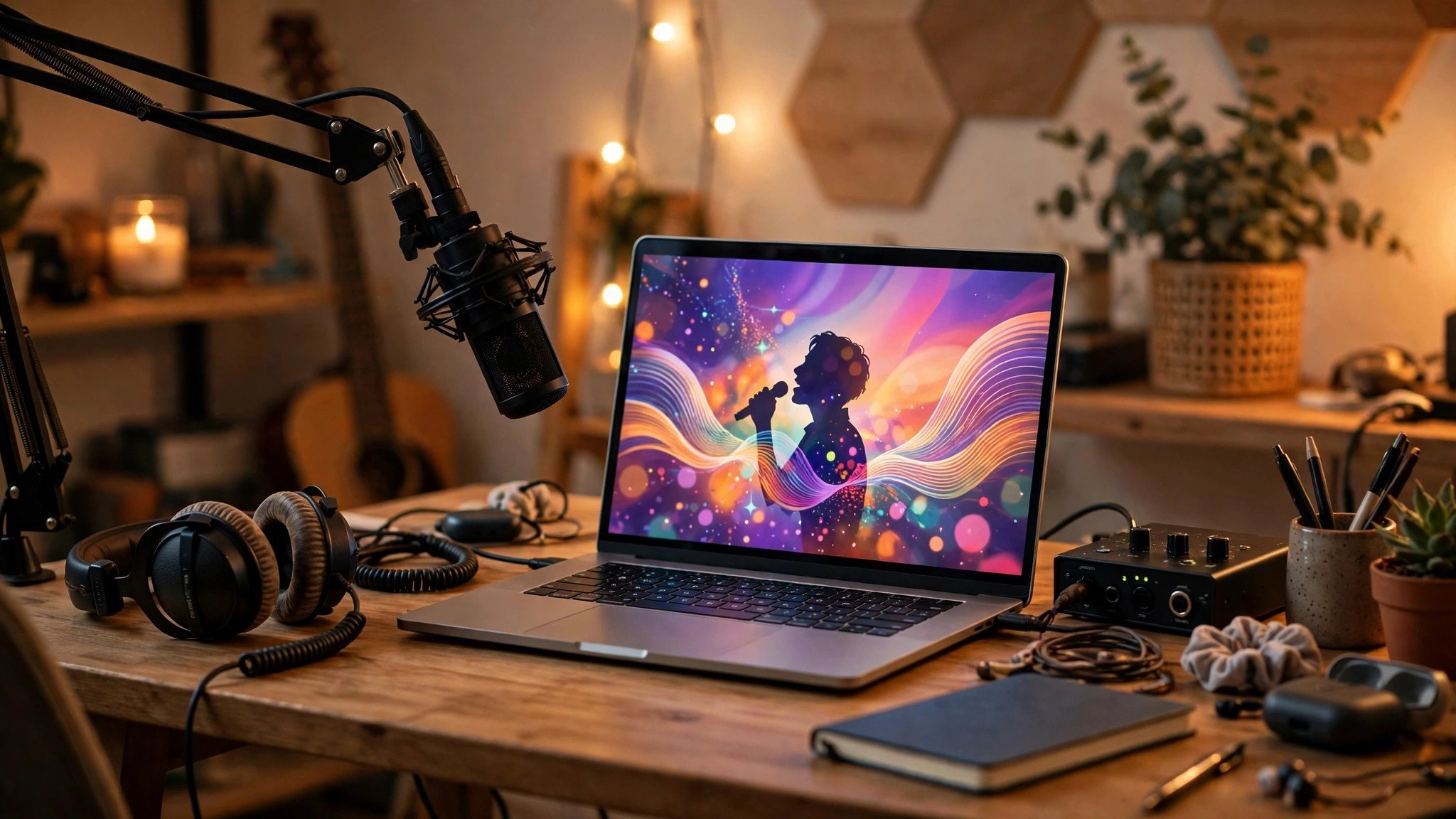
Suno Visuals can turn a song from your library into a lyric video of up to 15 seconds, or into cover art — but it is not free. On November 17, 2026, Suno's official blog 'Introducing Visuals' announced the launch: images and video use separate Visuals credits, counted apart from song credits. The launch is web-only, and the mobile apps follow in a few weeks.
What Suno Visuals Can Make
- Lyric videos: the visuals move with the beat and the lyrics can lip-sync, made for short-video platforms as a hook for your song.
- Album art and video clips: each clip runs up to 15 seconds. You can start from a built-in character or upload your own photo as the starting frame.
- Longer videos: the editor stitches clips together shot by shot along the song's waveform, swapping shots and restyling text. Each generation returns two takes to choose from.
5 Steps From Song to Video
- Open Suno's Create page on the web and switch to the Visuals tab.
- Pick a song from your library and choose the section to turn into video.
- Write a visual prompt, or upload a photo or pick a built-in character.
- Choose one of the two generated takes; if you do not like it, change the prompt and generate again.
- Use the editor to extend the video shot by shot and add styled lyrics. Check your credit balance before exporting.
3 Pitfalls to Avoid
Visuals credits are bought separately and do not draw on song credits — check the pricing page first and work out what a fully illustrated song will cost, so you do not run out halfway. It only accepts songs already in your Suno library; audio uploaded from outside cannot be used directly, so get the song into your library first. A single clip is capped at 15 seconds, so a full song has to be built clip by clip, which costs time and credits. Faces, celebrity likenesses, and copyrighted material are filtered out; songs made on the free plan carry no commercial rights, and a Visuals video inherits the rights of its song — check the plan terms before commercial use.