A drawing prompt does not need to be long. What matters is breaking the image into parts an AI can follow: what the subject is, where the viewer stands, where the light comes from, what style to use, and what to leave out. The template below follows exactly that split, and it fits cases where you need one usable image rather than something to glance at: article illustrations, poster drafts, and presentation artwork. The more specific the purpose, the better the details will be, so settle the purpose and the aspect ratio before you copy it.
The prompt to copy directly
Draw one [purpose] image, [aspect ratio].
Subject: [subject description with 2-3 concrete details].
Composition: [viewpoint and framing, how much of the frame the subject takes, what the background is].
Lighting: [main light color and direction, contrast with ambient light].
Style: [one texture word, such as soft hand-drawn illustration, flat illustration, or photorealistic look — pick one].
Constraints: no text in the image, no watermark, clean details, do not cram in elements.
Make it your own scene
| Variable | What to fill in | What goes wrong if you get it wrong |
|---|---|---|
| Purpose | Article illustration, poster draft, presentation artwork — be specific | A vague purpose pulls the details off track |
| Subject | A noun plus 2-3 concrete details, not a single word | A single word like "bookshop" leaves the image empty |
| Composition | Viewpoint, subject share of the frame, background | With no viewpoint, the AI picks an angle that may not suit |
| Lighting | Main light color, direction, and contrast with ambient light | With no lighting, the image turns flat and grey |
| Style | Only one texture word | Two styles piled together fight each other |
| Aspect ratio | 16:9, 1:1, or 9:16, written in the first sentence | A ratio kept only in your head may come out wrong |
A filled-in example
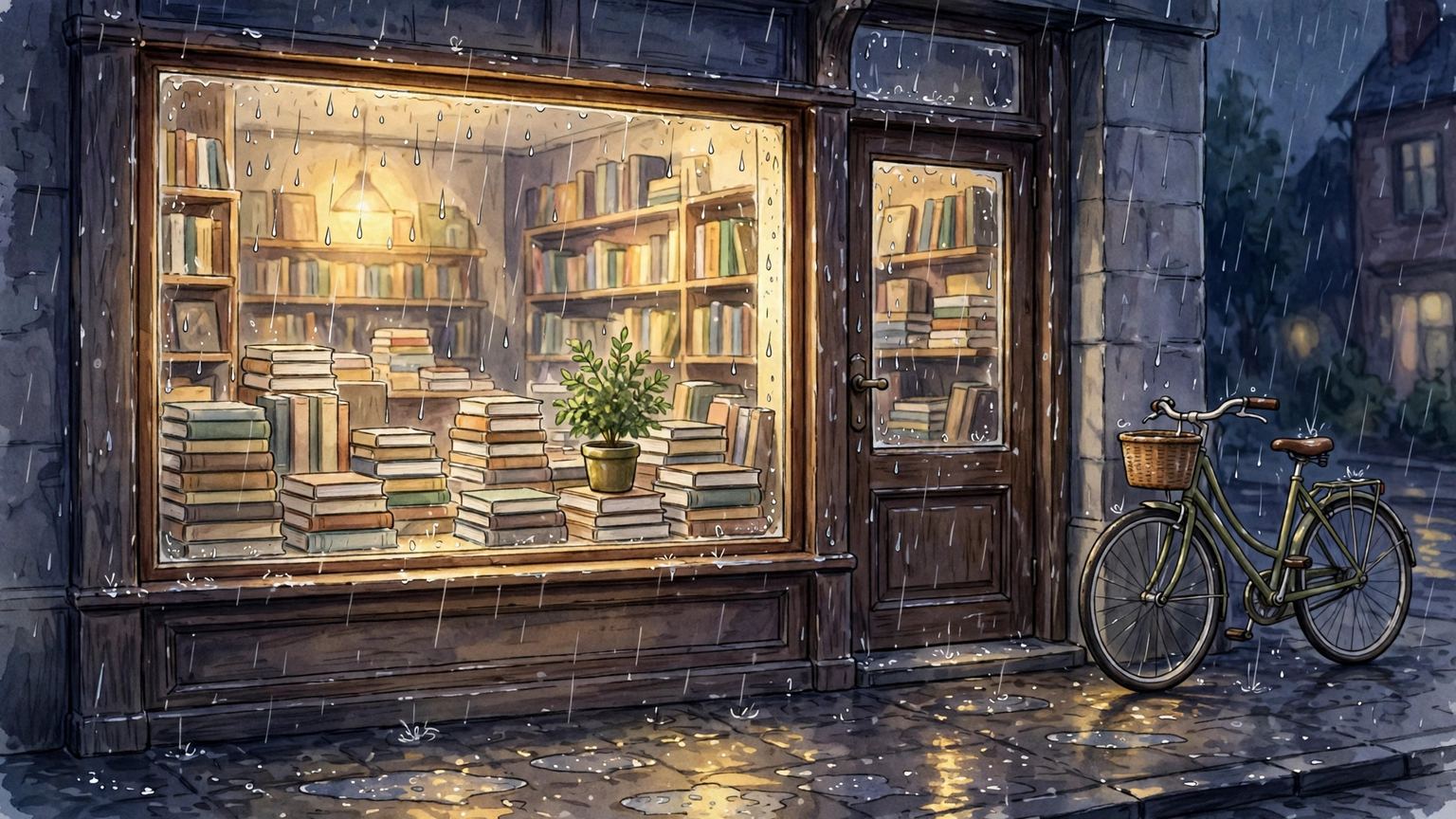
Draw one article illustration, 16:9 landscape.
Subject: the window of an independent bookshop, glowing with warm yellow light at night, with a few stacks of books and a potted plant in the window and a bicycle parked by the door.
Composition: eye-level view, the bookshop takes up two thirds of the frame, street and rain as background, no faces visible.
Lighting: warm light as the main light, cool rainy-night ambient light as contrast, a slight reflection on the window glass.
Style: soft hand-drawn illustration feel, clean colors, not a photorealistic look.
Constraints: no text in the image, no watermark, clean details, do not cram in elements.
When the result is off, tune it this way
- Too cluttered: remove one detail and generate again. Do not change five things at once, or you will not know which change fixed it.
- Style drift: move the style sentence earlier and add one style to exclude, for example not a photorealistic look.
- Garbled text: state no text in the constraints. If it persists, switch to a text-free composition or crop the text-bearing corner afterwards.
- Wrong ratio: put the aspect ratio in its own sentence at the start, and also select the ratio once in the tool, so both places agree.
- Washed-out colors: add a main light color and a contrast relationship to the lighting sentence. "Make it prettier" tells the AI nothing.
For your first try, copy the template as is. After the first version, change only one thing at a time — the subject, the lighting, or the style — and check each version. That finds a usable image faster than changing everything at once.