AI image generation has two notorious failure points: hands and text. Here's the bottom line: neither can be fixed by writing a "better prompt" – you dodge hand problems by simplifying the composition, and you solve text problems by splitting generation and typesetting into two steps. Once you get this, your success rate jumps.
Why hands and text are so hard to get right
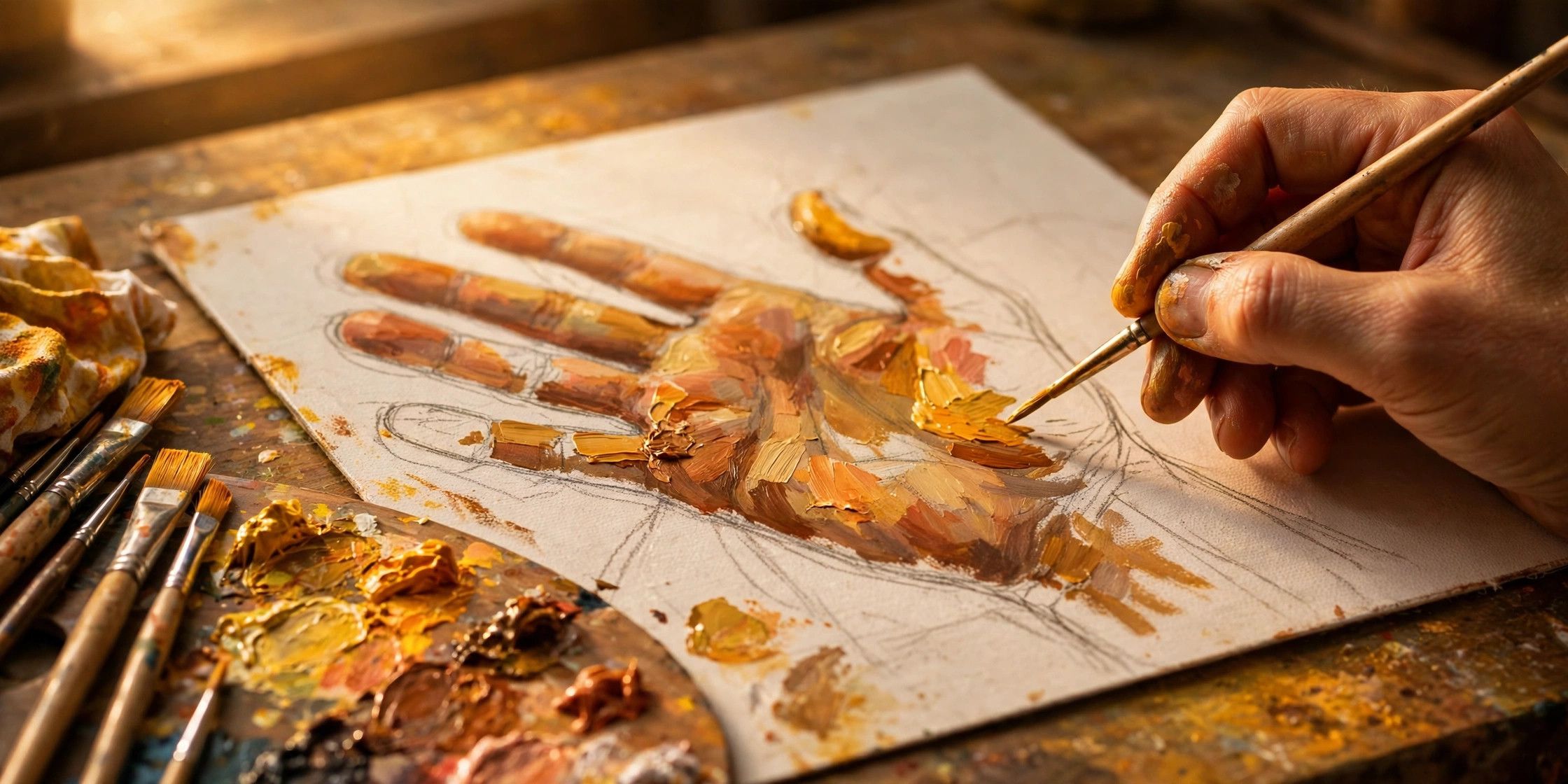
This isn't a temporary bug in one model; it's baked into how diffusion models work. A diffusion model assembles an image step by step out of noise, learning statistical pixel-texture patterns – not anatomical knowledge like "a hand has five fingers." Hands appear in endless poses, and clear close-ups are rare in training data, so the model paints by feel: an extra finger here, a missing one there, fingers fused together.
Text is even more fundamental: the model doesn't "know" characters at all – it paints them as decoration. It knows that "some character-like squiggles should go here," so what comes out looks like writing without being writing. English letters are simple and repetitive, so they fare okay; dense, complex Chinese characters fail almost every time.
Simplify first: keep hands out of the spotlight
Since hands are the biggest failure zone, the most effective fix isn't to draw them harder – it's to keep them out of prominent view. Half-body portraits, side profiles, and back views naturally avoid hand close-ups. Put hands in pockets, have them hold a cup, or rest on a shoulder: occlusion and fixed poses take enormous pressure off the model. Fewer people helps too – a single figure fails far less often than a crowd. And don't forget a negative prompt like extra fingers, deformed hands, extra limbs to filter out another batch of rejects.
Text in the prompt: keep it short and quote it
If text absolutely has to appear in the generated image, two tricks. First, keep it short: a slogan of three to six characters max, English preferred – never stuff a whole ad sentence into the prompt. Second, fence the exact text in quotation marks so the model knows what to draw, e.g.: a poster with the text "SALE" in bold red letters. The shorter and simpler the string, the less likely it gets mangled as texture.
Real layouts: generate the background and add text separately
For posters, covers, or social media graphics that genuinely need typesetting, the ultimate solution is to separate the two: first have the AI generate only a text-free background, perfecting the scene, mood, and subject; then add the text manually in Canva or Photoshop.
Two advantages: the AI is freed from the impossible task of "drawing text," so backgrounds come out better; and you fully control font, size, spacing, and color – a level of typography generated images will never reach. Many professional-looking AI posters are actually made exactly this way: AI handles the visuals, tools handle the words.