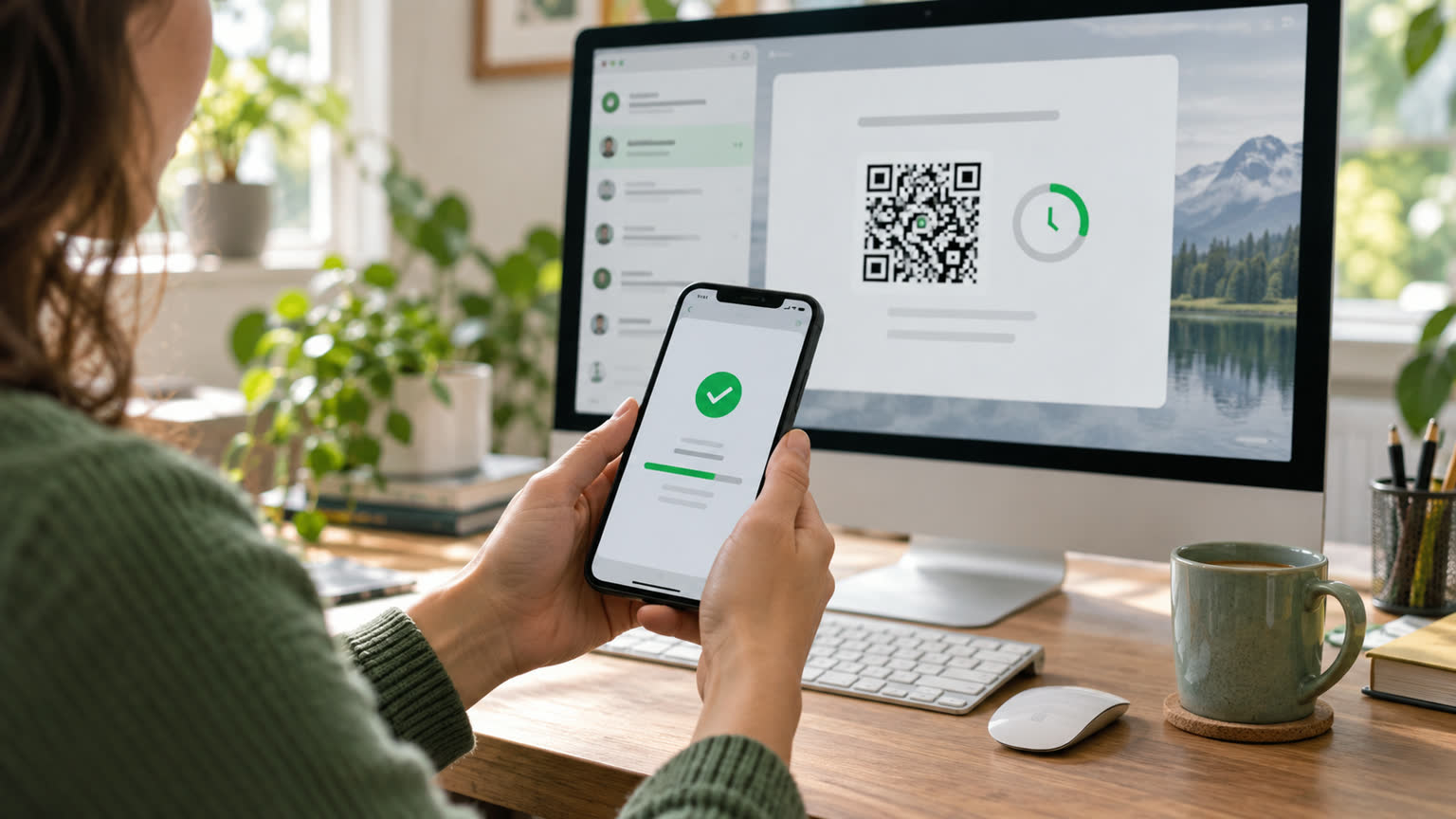

After WorkBuddy generates a webpage, if the address is a local file path or localhost, others usually cannot open it because the content only exists on your computer. If you need to view it externally, you can enable "Publish as a website" on the repository's publishing page to generate the public access address of the workbuddy.link; Before publishing, you must delete the private data and promptly close publishing after sharing.
Why copying the browser address doesn't work
The local path only points to the file on the current computer, and localhost also means the visitor's own device, not an internet server. If you send such addresses to WeChat or group chats, even if the other party sees the link, they won't be able to read your local page. Screenshots are good for quickly confirming the visual effect, but when scrolling, filtering, or interacting is needed, you should use the web publishing feature.
Basic steps for publishing a webpage
- Open the generated HTML page in WorkBuddy, first checking the text, images, and interactions.
- Go to the publication page for the corresponding content in the database and open "Publish as a Website."
- Wait for the public link to be generated, then test the homepage, buttons, and mobile display with Incognito Window.
- Send the link to the person who needs to see it; After the task ends, return to the publishing page to close the switch.
Once published, anyone who obtains the link may access it, so customer lists, phone numbers, internal quotes, access tokens, and unpublished data cannot remain on the page. Do not treat "link not found in search" as a privilege control.
How to publish, collaborate, and send files
| Demand | A more suitable way |
|---|---|
| It only lets others browse the webpage | Publish it as a website and share the public link |
| Multiple people need to continue editing the materials | Use invitation collaboration without public publishing to replace permission management |
| Only the static version is delivered | Export PDFs, images, or compressed web files |
| The page contains continuously updated data | First, confirm the data source, refresh method, and disclosure scope |
What to do if links can't open or the content is incorrect?
First, confirm the publish switch is still on, then use the incognito window to exclude login status and old cache. When a webpage references the local absolute path, images or scripts may only appear on your own computer. You should have WorkBuddy organize the dependencies into publishable structures and then check again. After each modification, retest the public address; do not only look at the local preview; After stopping sharing, you should revisit and confirm that the page is no longer publicly accessible.