
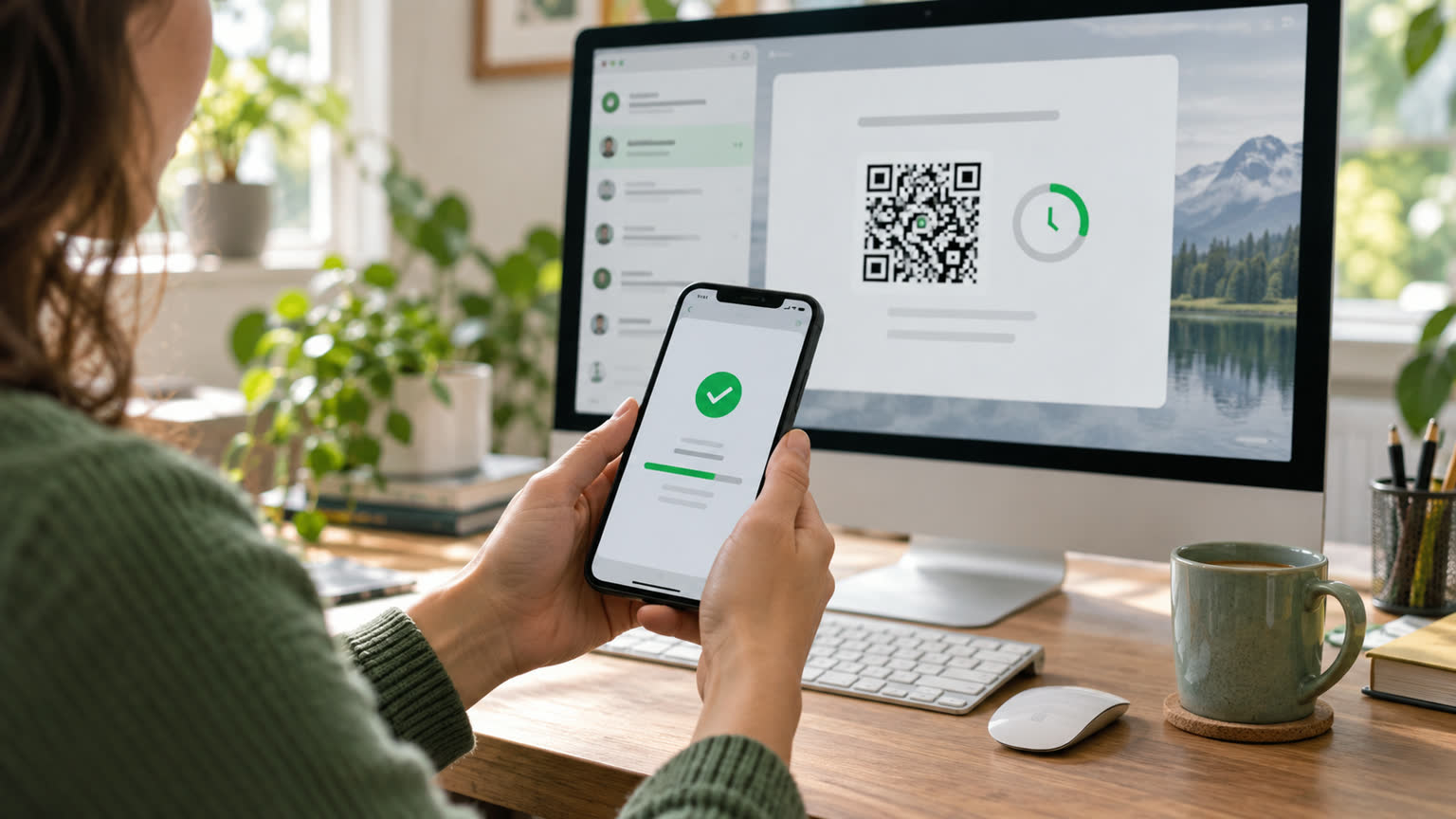
WorkBuddy can remotely send tasks, resume chats, approve operations, and view results via WeChat, but actual execution still happens on the computer. For first use, first confirm that the desktop version is no lower than 4.6.4 and WeChat is no lower than 8.0.70. Both the computer and phone can be connected to the internet, and the computer remains powered and running WorkBuddy; When the computer is offline, the WeChat side cannot replace it to continue processing local files.
How to scan the QR code to bind it
- Open WorkBuddy's assistant settings and find the WeChat customer service account or WeChat Assistant entry in the integration list.
- Click Configure and wait for the system to generate the binding QR code.
- Scan the QR code with the WeChat account you plan to bind and wait for the desktop to display your avatar, nickname, and "bound."
- Send a simple test task in WeChat that does not involve file modification, confirming that messages and results can be returned in both directions.
Direct QR code scanning does not require creating an open platform app or filling in an App ID or App Secret. QR codes have a validity period; if the page stays too long or scans fail, re-click Configuration and Generate. Do not repeatedly scan expired images.
How to troubleshoot binding or not receiving a reply
| Phenomenon | Priority processing |
|---|---|
| Always showing "Binding" | Check your computer's network, close the configuration window, then re-enter; If the issue persists, restart WorkBuddy |
| No "bound" after scanning | Wait for status synchronization; If the QR code becomes invalid, it will be regenerated |
| WeChat messages received no response | Make sure the desktop is still running, the assistant service is enabled, and the integration status remains bound |
| I want to switch to another WeChat account | Unbind your current account first, then use the new account to scan the code |
What is the difference between WeChat Assistant and regular tasks?
Regular tasks allow free selection of work directories and simultaneous creation of multiple tasks; Assistants use dedicated folders, with all remote commands concentrated in one session, and historical context retained. When selecting directories locally, prioritize regular tasks, and when out, trigger or check progress through assistants.
WeChat can approve commands and file modifications, so "remote convenience" should not be interpreted as risk-free. When deleting, sending, overwriting, or uploading, verify the target and scope of impact; Unbind unused accounts promptly. Currently, one computer corresponds to one bound account; switching accounts must first be unbind.