
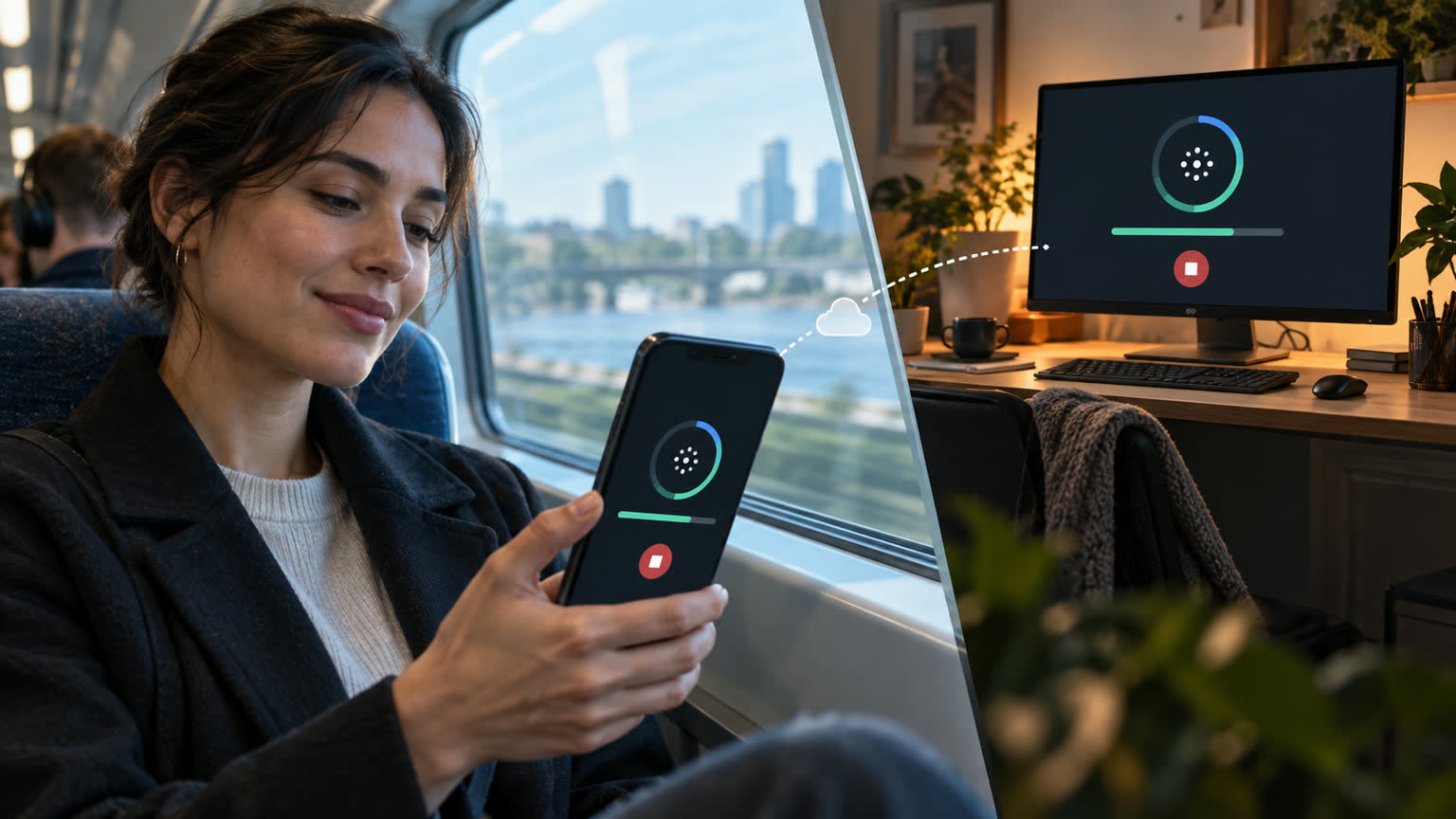
WorkBuddy can connect to a computer on mobile or via mini-programs, but the phone is more like a remote console for the desktop agent, not to move computer tasks to run locally on the phone. The desktop must be logged in, connected to the internet, and allow mobile connections; If the computer is shut down, sleeps, or the network is interrupted, the phone will show offline and cannot continue performing file tasks on the computer.
The first connection requires meeting three conditions
- Account Consistency: Log in to the same account on your mobile or mini program as well as on Windows or macOS desktops.
- Desktop authorization: On the desktop, enable "Allow mobile connection," then select "Connect to Computer" from the phone's sidebar.
- Device online: both ends keep the network available; After the first pairing, the device relationship is preserved, and there is no need to reconnect each time.
When you are often away from your workstation, you can enable "Remote Lock Screen Lock" in the desktop system settings. It is used to prevent the computer from automatically sleeping or closing the screen after the screen locks, but it cannot solve problems such as power outages, shutdowns, forced system sleep, or network disconnections.
What exactly can you do on your phone?
After connecting, you can view the device's online status, as well as whether tasks are running, awaiting input, completed, stopped, or failed. When tasks require additional conditions, you can directly enter the original dialogue to continue the command, and messages will be routed back to the desktop for execution; If you notice a deviation, you can press the stop button on your phone, and completed steps and results will still be preserved.
| Phenomenon | Priority checks |
|---|---|
| The computer is actually on, but the phone shows offline | Use the same account, connect the switch, and the network on both ends, then try reconnecting |
| After locking the screen, it quickly disconnects | Enable remote lock screen and check system sleep settings |
| The phone sends a message, but the task doesn't continue | Confirm that the original dialog on the connected computer is entering and check whether to wait for permission confirmation |
| Status hasn't updated for a long time | Refresh the connection; If still abnormal, return to the desktop to check the cause of failure |
What else should you pay attention to when using remotely?
Checking status and sending resumed chats on phones do not consume extra points; model and tool tasks actually performed by desktop WorkBuddy are still billed according to the original rules. Remote commands have desktop permissions and must first verify objects and paths when deleting files, sending messages, or submitting data; After using a public phone or temporary device, users should log out of the account, and any computers they no longer use must also be disconnected.