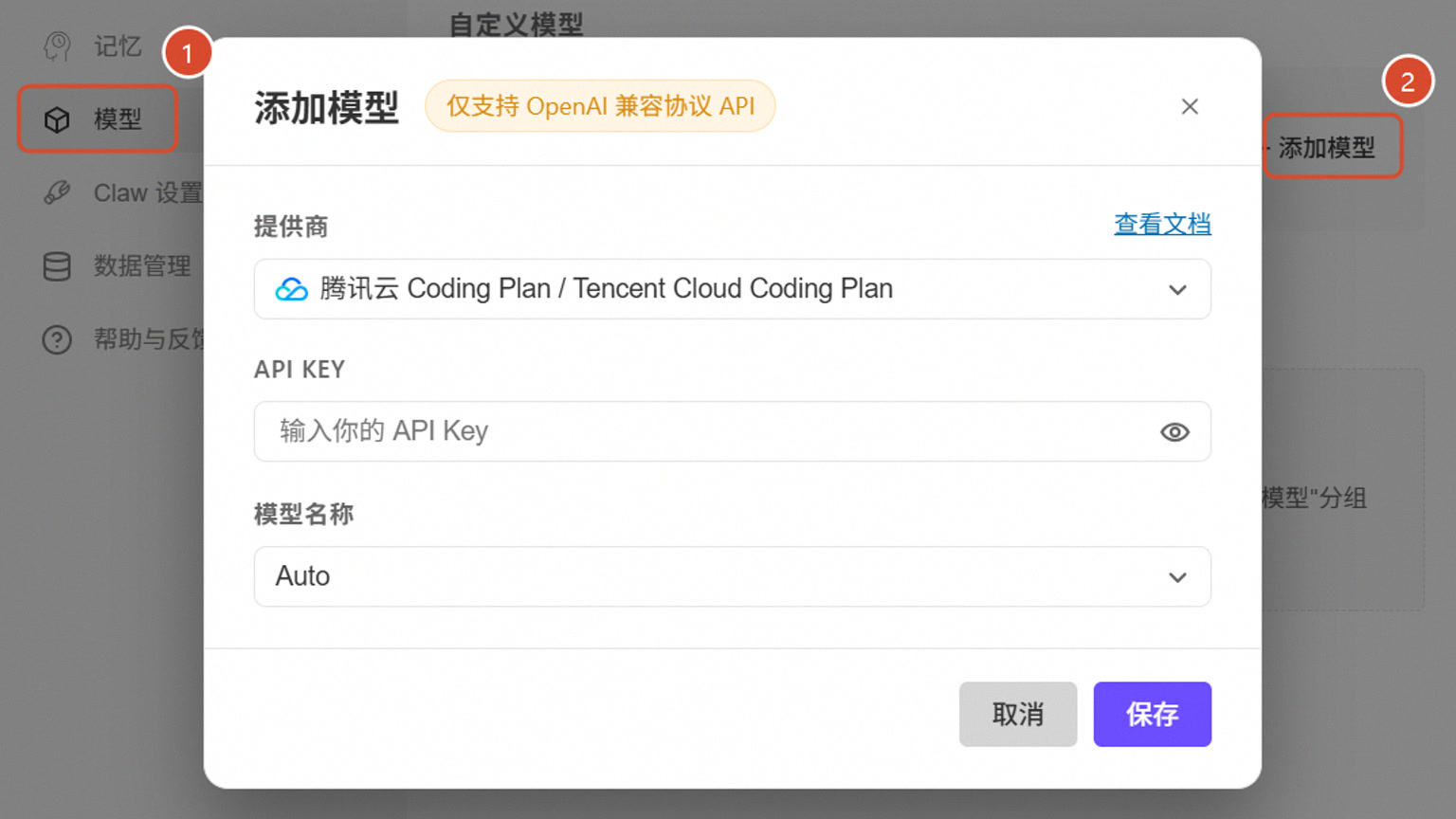

WorkBuddy can't read PDF, Excel, or Word. The most common reason isn't file corruption, but that the model doesn't support the input type, lacks corresponding document processing skills, or the task is packed with too many files at once. First, switch to a model that supports file or visual input, then install appropriate document processing capabilities, and finally split the large task into smaller parts; These three steps are usually more effective than repeatedly uploading the same file.
Step 1: First, determine which type of failure it is
| Phenomenon | More likely reasons | Handling methods |
|---|---|---|
| Files can be added, but the model says it can't see the content | The current model does not support this type | Switch models that support file or multimodal input |
| Scanning PDFs only shows blank or garbled text | The page is an image, with no copyable text | Extraction is done after using OCR or visual models |
| Excel only read the first part | Too many worksheets, large data volumes, or unclear requirements | Specify the worksheet, column name, and row range |
| Can analyze, but generates files but cannot be opened | The output format was not clearly specified | Clearly require generating xlsx, docx, or PDF |
Test with a small file first. If the small file is normal and the large file fails, it suggests more of a capacity issue, contextual or step complexity; If all similar files fail, then check the model and skill. Do not authorize the entire drive directory at once just to troubleshoot.
Step 2: Supplement processing capacity and split tasks
Install the corresponding PDF, spreadsheet, Word, or OCR capabilities in the plugin or skill market, then reopen the task and try again. Complex tasks can be broken down into four sections: "Read table of contents and filenames—extract content—check fields—generate results." Each section should first confirm output. Excel should clearly explain worksheets, headers, statistical scopes, and null value handling; PDF should specify whether it is a text version or a scanned version, and which pages need to be read.
For example, instead of just saying "Analyze this report," you can write: "Read sales.xlsx's order worksheet, only count data for August 2026, summarize tax-inclusive sales by region, column missing regions separately, output summary.xlsx, and do not overwrite the source file." "Acceptable prompts can reduce the model's own guesswork."
Step 3: Check the path, permissions, and client status
Make sure the file is in the current workspace, not exclusively controlled by moves, encryption, or other programs, and grant WorkBuddy necessary read-only permissions. If the task remains stuck, shrink the attachment range, switch models, and restart the task; If it still fails, run the diagnostic tool, record the error time, and reproduce the file type. When sharing logs, do not include the client's original text, account directory, or key. Finally, check the four acceptance criteria using page count, line count, key sum, and whether the output file can be opened, to avoid "task shown as completed" but leaving unusable results.