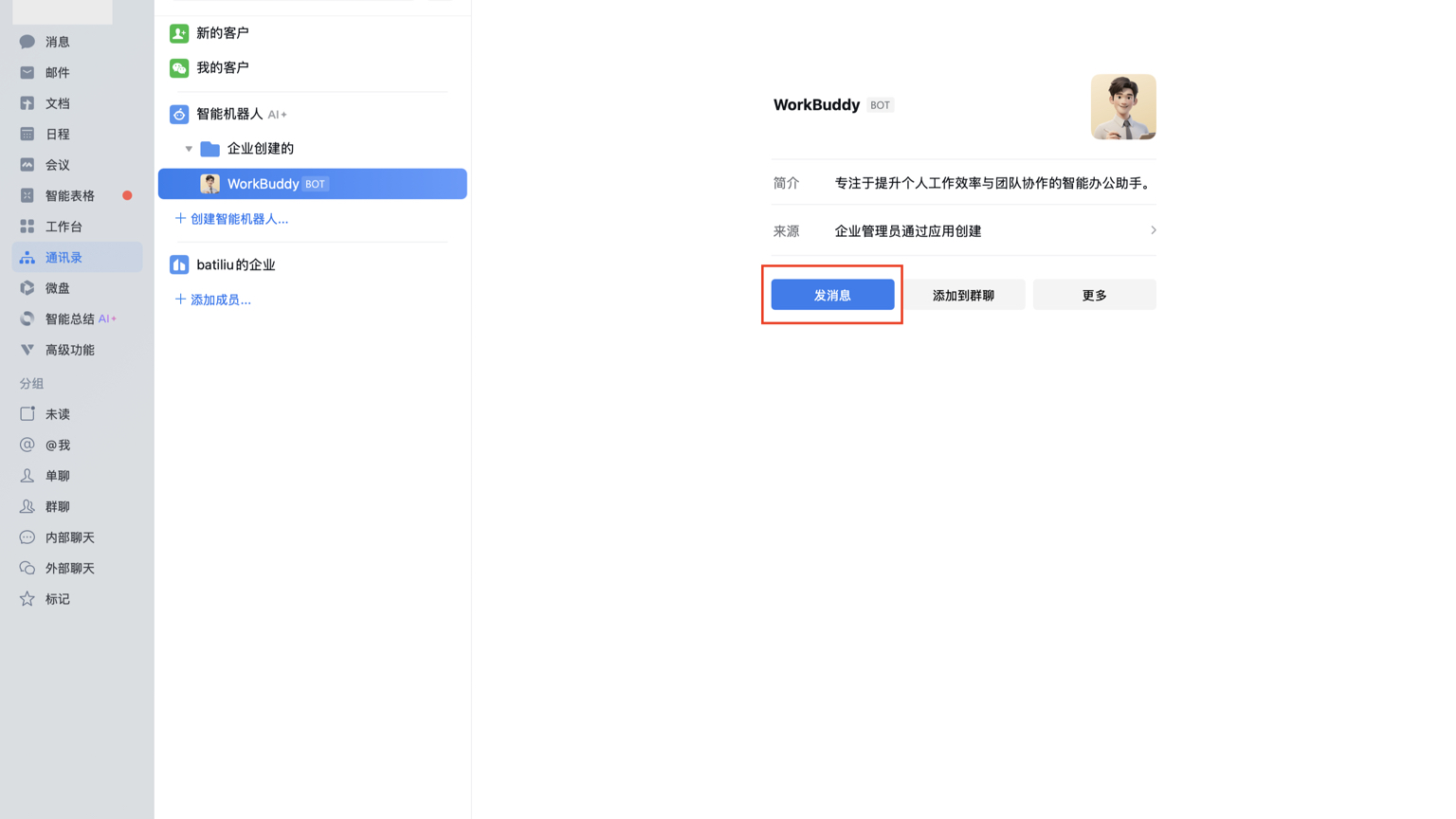
If the WorkBuddy WeCom bot doesn't respond, it's usually not because the AI doesn't understand, but because the computer is not running, the access method is inconsistent, the bot's credentials are invalid, or the member list doesn't include the current account. First, send a simple test message, then check layer by layer by 'computer—mode—credentials—permissions', which is faster than repeatedly deleting and rebuilding.
First layer: Confirm that the executioner is truly online
WeChat Assistant is just a remote entry; tasks are actually executed by WorkBuddy on the computer. The computer must be kept on, the network available, the WorkBuddy client running, and the assistant service enabled. The lock screen does not necessarily mean it stops running, but system hibernation, exiting the client, switching networks, or being blocked by a firewall will prevent the robot from receiving tasks.
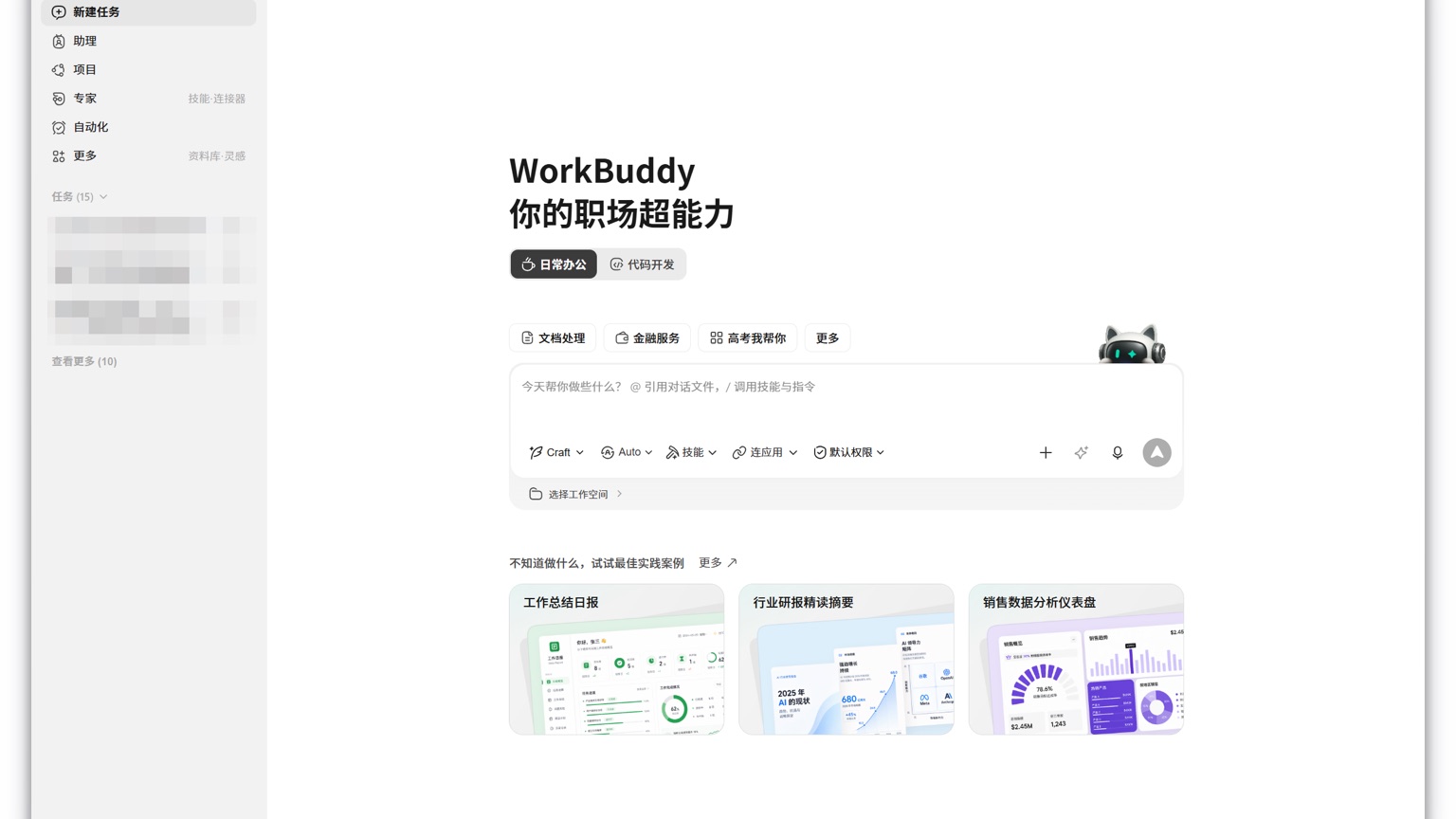
First, return to the desktop to check the enterprise Wecom integration status in "Settings — Assistant Settings," then observe if new remote task records appear. If there is a message on the enterprise Wecom but the desktop has no records at all, prioritize checking the connection; If the desktop receives a task but fails to execute, then check the model, permissions, and work directory.
Layer 2: Both ends must choose the same access method
WeChat Work API mode supports WebSocket long connections and URL callbacks. In the WeCom backend, choose long connections, and in WorkBuddy, you must also select long connections; One end uses callbacks, the other uses long connections; even if the configuration seems complete, they won't be interconnected. In general scenarios, long connections are prioritized because only Bot ID and Secret are needed, without backfilling Webhook addresses.
If a long connection fails to register, copy the Bot ID and Secret again, exclude the front and rear spaces, and confirm that the Secret has not been regenerated. Privatization WeChat Work also checks that the custom WebSocket address must start with ws:// or wss://, and that the current computer can access the corresponding gateway and port.
Third level: Check who the robot can see
Successful bot creation does not mean all members can use it. Administrators should check "Available Members" in the WeComcom backend to confirm that the current employee, department, or tag is included; When using in group chats, also confirm that the bot has joined the corresponding group and has 机器人发送指令. First, test single-chat with an account that has been clearly authorized, which can quickly distinguish between member scope issues and connection issues.
Finally, rebind it; don't delete the bot from the start
If the status shows disconnected, you can unbind and re-register in WorkBuddy. URL callback mode also checks that Token, Encoding-AESKey, and backfill addresses are exactly the same. After recovery, test "Hello", read-only queries, generate a temporary file, and finally test modification or deletion class operations. High-risk tasks require manual confirmation; this is a security mechanism, not bot stuck. Retain the original bot configuration until the new connection is validated successfully, then clean up the old configuration to avoid simultaneous interruptions at the team entrance.