When ChatGPT Voice has no sound, don't change a bunch of settings at once. Using a brief conversation to determine whether the fault occurred at the microphone input where "it can't hear you" or at the speaker output "you can't hear it," then check along the corresponding link is usually faster than repeatedly exiting the account.
First, conduct a 30-second shunt test
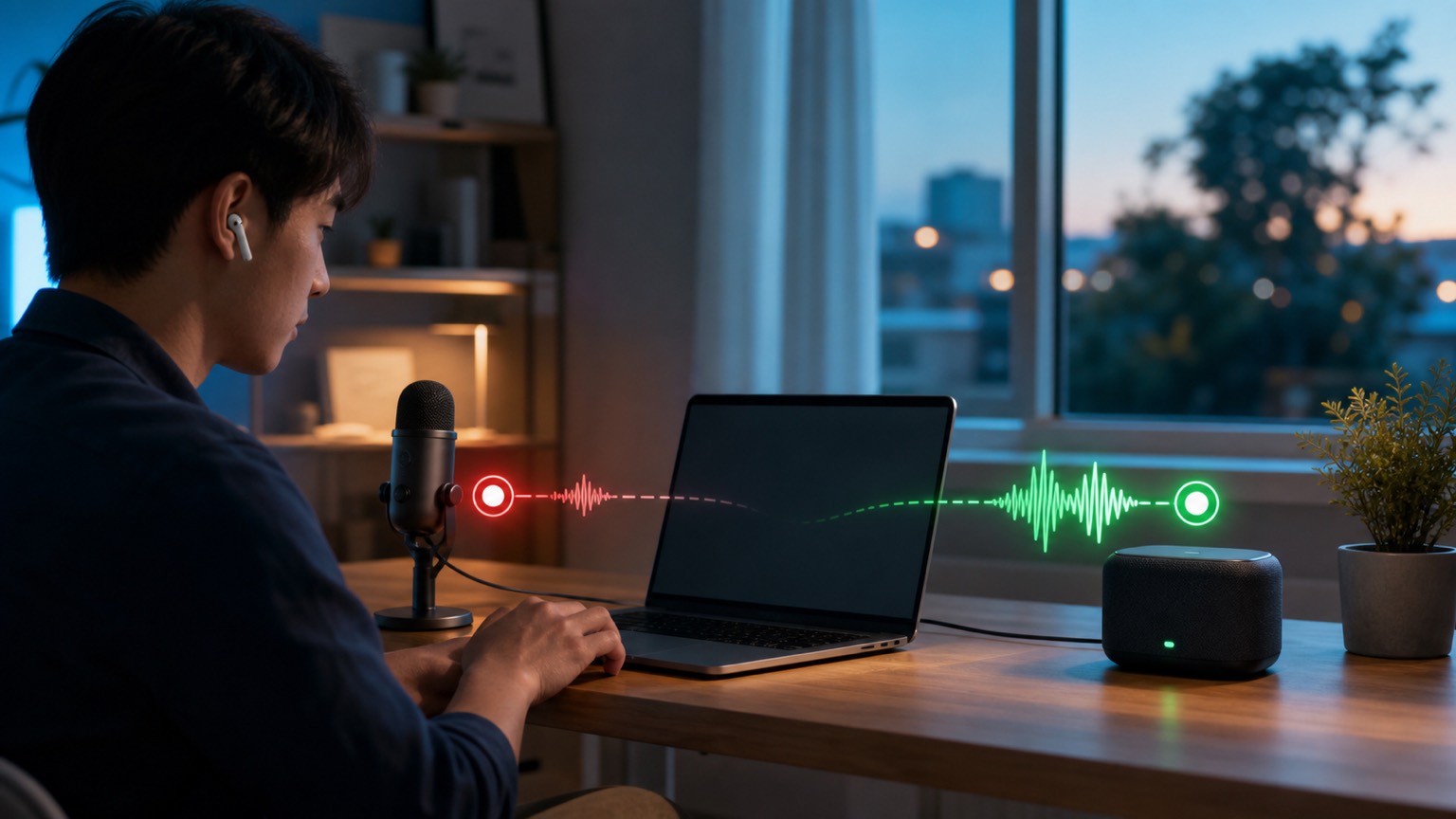
After entering a voice chat, say a short sentence to check if the microphone is on silent and whether the interface is receiving any sound. If the system can display or generate a response related to your question but no sound is played, focus on checking speakers, headphones, and media volume; If it doesn't recognize you're speaking, focus on microphone permissions and input devices.
It doesn't hear you: check the input link
- Make sure the microphone in the voice interface is not muted.
- In the phone system or browser site settings, confirm that ChatGPT has microphone permissions; On the web side, also check whether your current browser allows microphone use.
- When connecting Bluetooth headsets, monitors, or docking stations, check the currently selected input device to avoid sending sound to another microphone.
- Use the system recording tool to record a ten-second audio segment. If the recording itself has no waveform or sound, the problem lies with device or system permissions, and you don't need to continue adjusting ChatGPT.
You can't hear it: check the output link
The first thing to increase is the media volume, not the ringtone volume. Then disconnect and reconnect the Bluetooth headphones to ensure the sound is not routed to the earphones, monitors, or car devices that have been removed. It can play a regular video for comparison: other apps are silent, so prioritize repairing system output; If only voice conversations are silent, refresh the webpage or exit completely and reopen the app to create a new voice session.
If the sound is always interrupted
Background noise, speaker echo, multiple people talking simultaneously, and network fluctuations can all make voice conversations misunderstand that you're interrupting. Switch to a quieter environment, wear headphones, shorten pauses, and avoid having device speakers directly at the microphone. On iPhone, you can also enable voice isolation for the microphone in Control Center.
After completing the check, only the end where the location was located was changed. Keeping the two comparison results—"Is the system recording normal" and "Can other apps play?" can help you decide whether to check the device, browser, or the ChatGPT session itself.