If you keep seeing "This MCP server doesn't implement our specification" when connecting to the custom MCP connector in ChatGPT, don't leave the blame on the network or administrators. OpenAI's current help is clear: in most cases, this is the structure that your MCP service does not meet its requirements, especially if the necessary tools are missing, or if the tool snapshot is no longer compatible with the current online implementation.
The most misleading thing about this error is that it looks like a "connection failed", but it is more like a "protocol mismatch". In other words, ChatGPT has touched your service, but found that its exposed capabilities are inconsistent with OpenAI's expectations, so it refuses to continue accepting it.
There are now four of the most common pits. First, the server did not provide the required tools as required. Second, you changed the server capability, but the workspace still saved old snapshots, causing ChatGPT to think it was connected to A but actually got B. Third, Developer Mode is not open or has not been officially published in the team workspace. Fourth, many people want to connect directly to local MCP services, but the current help is also very clearly written that ChatGPT now supports remote services, not local direct connections.
The order of investigation is recommended as follows:
1. Check OpenAI's MCP documentation to confirm whether the service actually implements the required structure.
2. If you have recently changed the tool definition, refresh or republish the connector first, and do not directly continue the old configuration.
3. Check that Developer Mode is on, especially for Business and Enterprise/Edu workspaces.
4. Make sure you are connected to a remote server and not a local temporary service.
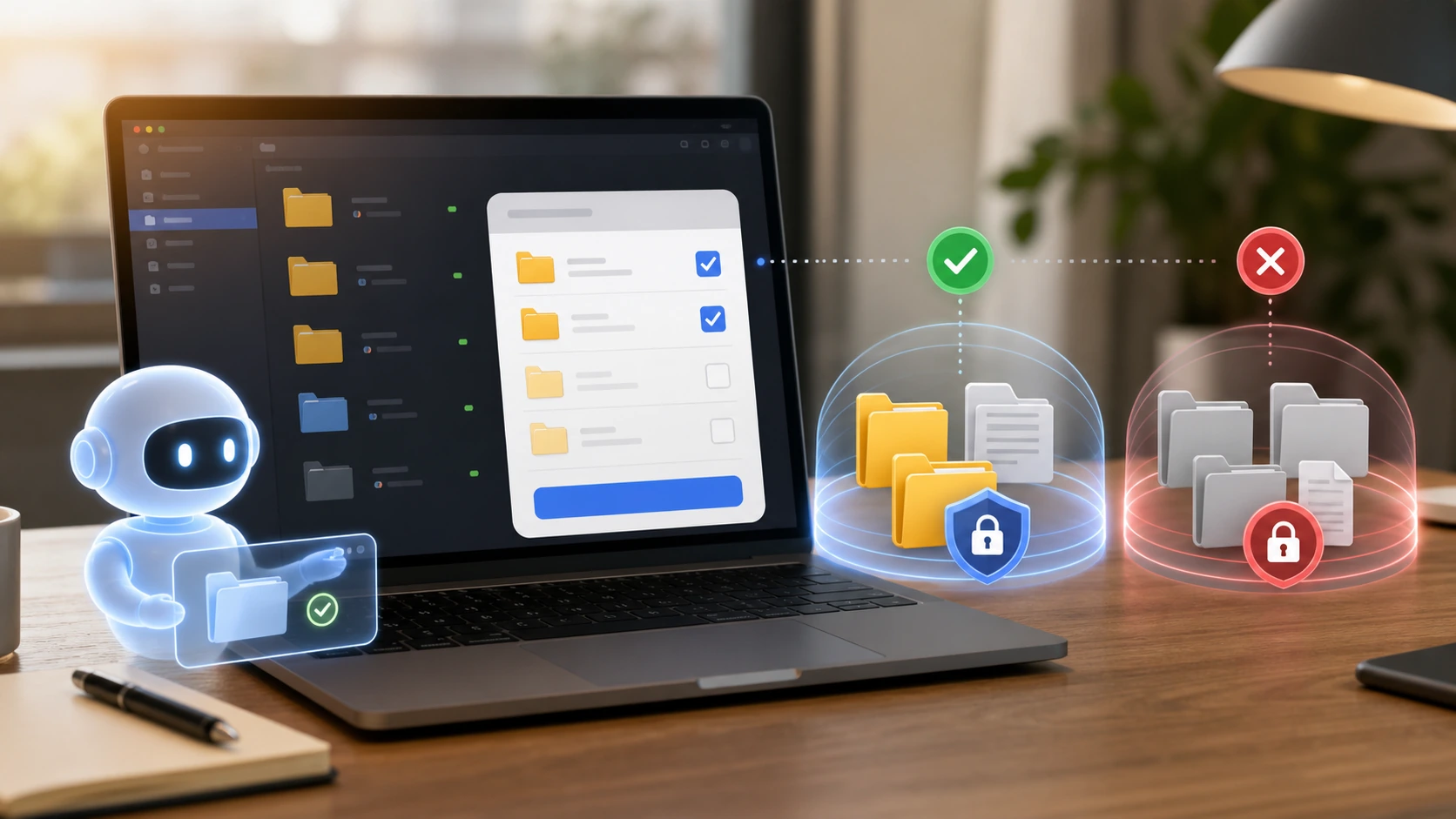
If you're using it for someone else in your workspace, look at it one more layer: ChatGPT saves a "frozen snapshot" after the administrator's first approval. If you change the input or output of the tool in your online service, but do not go through the refresh and release process again, it is easy to have a situation where "it was possible to connect before, but now it suddenly doesn't work".
So when you see this error, don't try to log in frantically first. Most of the time, what really needs to be changed is the connector itself, not the account itself. Treat it as a protocol compatibility problem, and you will avoid many detours.