1. Basic information
Google Slides is a cloud presentation editing and presentation tool provided by Google, which is an important part of the Google Docs editing suite and Google Workspace office suite. Users can create, edit, and play presentations directly on the web, or access the same file on mobile phones and tablets through mobile apps. Google Slides features online collaboration and cloud storage as its core features, providing basic presentation creation capabilities and team collaboration environments for individual users, enterprise organizations, and educational institutions.
For individual users, simply sign up and sign in to your Google account to access the main features of Google Slides for free. For businesses and educational organizations, subscriptions to Google Workspace typically provide extended capabilities such as centralized account management, security controls, and data compliance. Specific service content and available features may vary by region, and some details may vary by region.
2. Product Overview
The core positioning of Google Slides is the online presentation editor in the browser, and users can complete most of the presentation production work without installing a traditional desktop client. By default, the presentation data is saved in the cloud, and the system will automatically save the modifications during the editing process, and users can log in to the same account on any device to continue editing or presenting.
The product supports creating blank presentations and creating content based on system templates. Users can manage the order of presentation pages through the thumbnail on the left, and complete the layout of elements such as text, images, shapes, and diagrams through the editing area. With the cloud architecture, Google Slides can keep content consistent across devices, avoiding confusion or loss of local file versions.
At the same time, Google Slides supports importing and exporting common presentation file formats, making it easy to use with other office software. This compatibility makes it both a standalone online tool and a complement or alternative to traditional desktop software.
3. Core functions
1. Main functions
Google Slides provides a variety of preset themes and layouts, and users can directly apply presentation templates to quickly complete infrastructure construction. Core editing functions include text style adjustment, paragraph layout, image insertion, shape drawing, chart display, and page switching effects, etc., to meet the needs of regular business reports, teaching courseware and project presentation.
Users can set different layouts for each page of presentation, mixing multiple page types such as title pages, graphic pages, and chart pages in the same document. Through the master function, font, color, and footer information can be managed uniformly, making it easy to maintain unified visual specifications in enterprise and school scenarios.
2. Collaboration and sharing capabilities
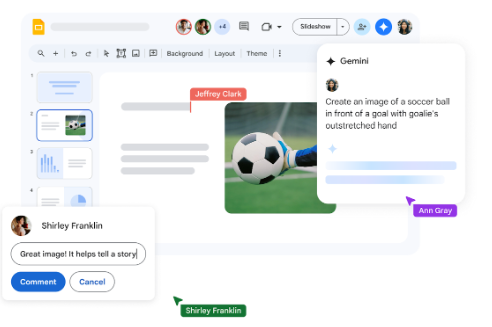
: Google Slides supports multiple users to edit the same presentation online at the same time. Collaborators' cursors and edit areas are distinguished by different identifiers to identify the source of the current edit. The system automatically records the version history, allowing users to view the status of the document at different points in time and revert to an earlier version if needed.
In terms of sharing, Google Slides supports access control through email invitations or sharing links. Document owners can set view-only, commentable, or editable permissions for different objects and retract access whenever needed. Comments and suggestions support discussions around specific objects, which is beneficial for remote teams to provide centralized feedback and collaborative edits.
3. Cross-platform and ecological integration
Google Slides can be used in mainstream desktop browsers, and supporting applications are provided on mobile devices, allowing users to switch between computers, mobile phones and tablets. Some features support offline editing, and changes made during offline are synchronized to the cloud after network recovery.
In terms of ecological integration, Google Slides is interoperable with Google Drive, Google Docs, Google Sheets and other products, and presentations can be saved directly in the designated network drive location, or content can be inserted from other documents. For organizations using Google Workspace, you can also combine calendars, meetings, and email to unify the process from document creation to meeting presentations.
4. Pricing and Version
Google Slides itself provides a free access path for individual users, suitable for students, individual creators, and small teams to produce and collaborate on daily presentations. For businesses, organizations, and educational institutions, Google Slides is often available as part of the Google Workspace suite with a subscription plan.
Workspace editions vary in terms of storage, management controls, audit logs, security policies, and support services, with costs and feature combinations varying by region. For exact pricing and available features, you will usually need to refer to the official local instructions for businesses and educational users.
5. Applicable scenarios and groups
In the enterprise environment, Google Slides is suitable for scenarios such as internal reporting, project explanation, sales plan display, and cross-departmental communication. With online collaboration capabilities, team members can edit on the same presentation, reducing file repetition and transfer.
In the field of education, teachers can use Google Slides to create courseware and share it with students, and students can complete group presentations in the manuscript for classroom teaching and assignment presentation. In personal and creator scenarios, Google Slides can be used to create presentations, publicly share materials, course presentations, training content, and more.
Overall, Google Slides is suitable for users who need to switch between multiple devices, rely on online collaboration, and want to reduce the burden of local file management, including corporate staff, project managers, teachers, students, and freelancers who need to produce presentation content.
6. FAQs
Q: What types of users does Google Slides mainly target?
A: Google Slides caters to a diverse range of groups, including individual users, business organizations, and educational institutions. Individual users can create and edit presentations for free, and enterprises and schools often use them as part of their online office and teaching tools, through account management and permission control.
Q: Do I have to stay connected to Google Slides?
A: Google Slides' full collaboration and sync feature relies on a network connection, allowing you to save your changes and collaborate with others in real time while online. On some platforms, users can enable offline mode to view and edit specified documents without a network, and then automatically synchronize the modified content after the network is restored.
Q: What are the differences between Google Slides and traditional desktop presentation software?
A: Traditional desktop presentation software relies more on local installation and local file management, while Google Slides emphasizes cloud storage and online collaboration. Google Slides can be used in browsers and mobile apps, supporting simultaneous editing and version management by multiple people, while working with other software through common file format compatibility.
Q: Is Google Slides suitable for direct screen casting presentations in formal meetings or classrooms?
A: Yes. Users can enter playback mode in a computer browser and display it through a projection device or screen sharing function. If used with online meeting tools, presentations can also be played directly in remote meeting scenarios, suitable for online presentations and online classes.