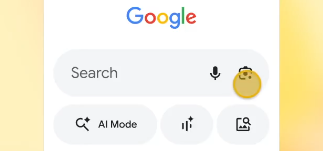
Google has announced the integration of its latest image editing model, Nano Banana, into search scenarios, enabling users to create or edit images in Lens and AI Mode within the Google app. According to official announcements and reports from various tech media outlets, users can open Lens on Android or iOS and enter the newly launched Create mode (with a yellow banana icon). Users can directly enter a prompt or take a photo to describe the desired effect, and then continue to refine the results through follow-up questions. This capability, based on Gemini 2.5 Flash Image, emphasizes speed, controllability, and consistency between subject and scene. It is gradually expanding to more products and regions, with NotebookLM already integrated and Google Photos also in the works.
The official blog post currently lists the launch date as October 13, 2025. Media reports indicate that the feature is gradually rolling out to English users, with some regions and languages still under development. The practical steps are consistent with the official five-step guide: Open Lens → Click Create (yellow banana) → Try a prompt → Take a photo and describe the edit → Use follow-up questions to further refine or share. Specific availability, compliance, and content policies are subject to Google announcements and in-product notifications.
Frequently Asked Questions
Q: Where is Nano Banana available now?
A: Lens and AI Mode are gradually being released in Google Search, and NotebookLM has been integrated. The region and language are subject to the prompts in the product, with English first.
Q: How to enter the Nano Banana editing interface?
A: Open Lens in the Google app and click Create (the yellow banana icon). You can start with the suggested words, or take a photo/select an image and describe the changes you want in words.
Q: How is it different from the generation in the Gemini app?
A: The underlying layer is still Gemini 2.5 Flash Image, but this time the entrance is moved down to the search, emphasizing the lightweight workflow of "shoot and modify as you go, and continuously ask questions".
Q: What types of editing can you do?
A: From stylization to partial replacement and composition adjustment and other common editing, and supports multiple rounds of follow-up refinement; specific restrictions follow Google's security and content policies.
Q: Which products will be launched later?
A: Officials said it will be brought to products such as Google Photos, and the timetable will be subject to subsequent announcements.