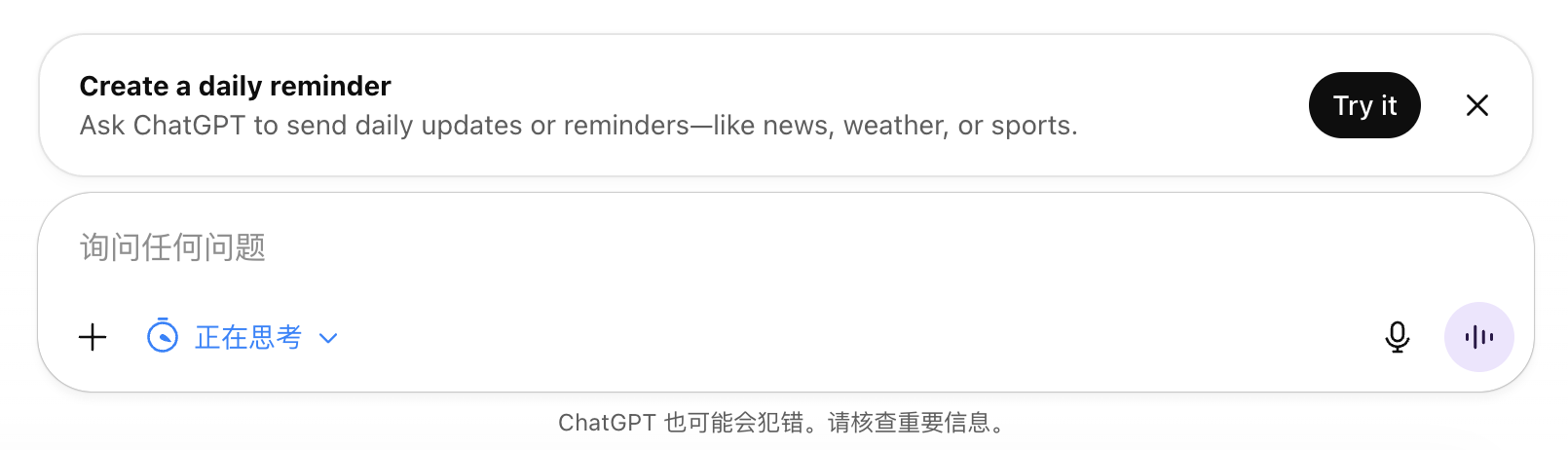
Create a daily reminder Ask ChatGPT to send daily updates or reminders—like news, weather, or sports.
OpenAI announced the launch of ChatGPT Pulse Pro Preview on mobile devices. The system generates daily scannable cards (such as news, weather, schedules, and itinerary reminders) based on past conversations, user feedback, and optional calendar/email access, allowing users to receive updates without having to ask questions. Officials claim that Pulse aims to advance ChatGPT from a "passive Q&A" to a "proactive assistant," emphasizing data privacy: external application integration is optional and disabled by default, and personalized data will not be used to train models for others.
Tasks in ChatGPT also supports the creation of scheduled/recurring tasks and reminders (e.g., "Sports briefing every evening" or "Weekly news summary every Friday"). ChatGPT proactively triggers and executes the preset reminders at the appointed time. These two features combine to create a stable " daily briefing + timed reminder " workflow. Broader availability and desktop scheduling will be announced in a future official release.
Frequently Asked Questions
Q: What is the difference between Pulse and Tasks?
A: Pulse is responsible for daily briefings (proactively organized and pushed by the system); Tasks is responsible for scheduled execution/reminders (user-defined frequency and content).
Q: Who can use it?
A: Pulse is currently in Pro preview for mobile and will be expanded later; Tasks is already available on Web, iOS, Android, and macOS.
Q: Privacy and data usage?
A: External application access is optional and can be turned off at any time; personalized data is not used to train models for others.
Q: What content can be covered?
A: News, weather, sports, schedule, email highlights, etc.; preferences can be customized through feedback.
Q: How do I get started?
A: Open Pulse preview in the app and connect it to the desired app; create daily/weekly task text in "Tasks" and save it.