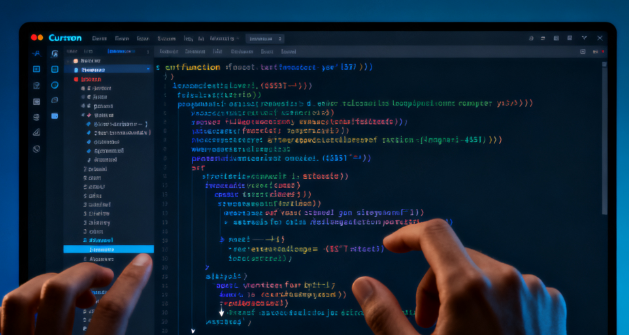
Cursor's "Zen Mode" is an immersive editing mode that hides the menu bar, status bar, sidebar, etc. after entering, leaving only the code editing area to help users focus on writing code. When you exit Zen mode, the editor returns to its normal layout.
- Shortcut Exit
Cursor, Zen mode is consistent with VS Code's Zen mode. You can use the default shortcut Ctrl + K Z (Windows/Linux) or Command + K Z (macOS) to switch between Zen mode. If you press the key combination again, you can exit.
- Exit the command panel
Press Ctrl + Shift + P (Windows/Linux) or Command + Shift + P (macOS) to open the command panel, enter "Zen Mode" or "Zen Mode", and the "Toggle Zen Mode" option will appear, click to exit.
- How to exit the interface
If you are not familiar with the shortcut keys after entering Zen mode, you can try to press Esc twice, and in some cases, you will directly exit full screen or Zen mode. If the interface is completely hidden, you can move the mouse to the edge of the screen to find the entrance to the recovery menu bar.
Frequently Asked Questions (Q&A)
Q: What should I do if Cursor Zen mode is stuck and the shortcut keys do not respond?
A: You can try to press Esc twice, or switch to the command panel to perform "Toggle Zen Mode", if it still doesn't work, close and restart Cursor.
Q: What is the difference between Zen mode and full screen?
A: Full screen just hides the system window border; Zen mode further hides the menus, sidebar, and status bar inside the editor for more focus.
Q: Can I modify the shortcut keys for Zen mode?
A: Yes, you can search for "Zen Mode" in the Settings → keyboard shortcuts and modify the bindings.