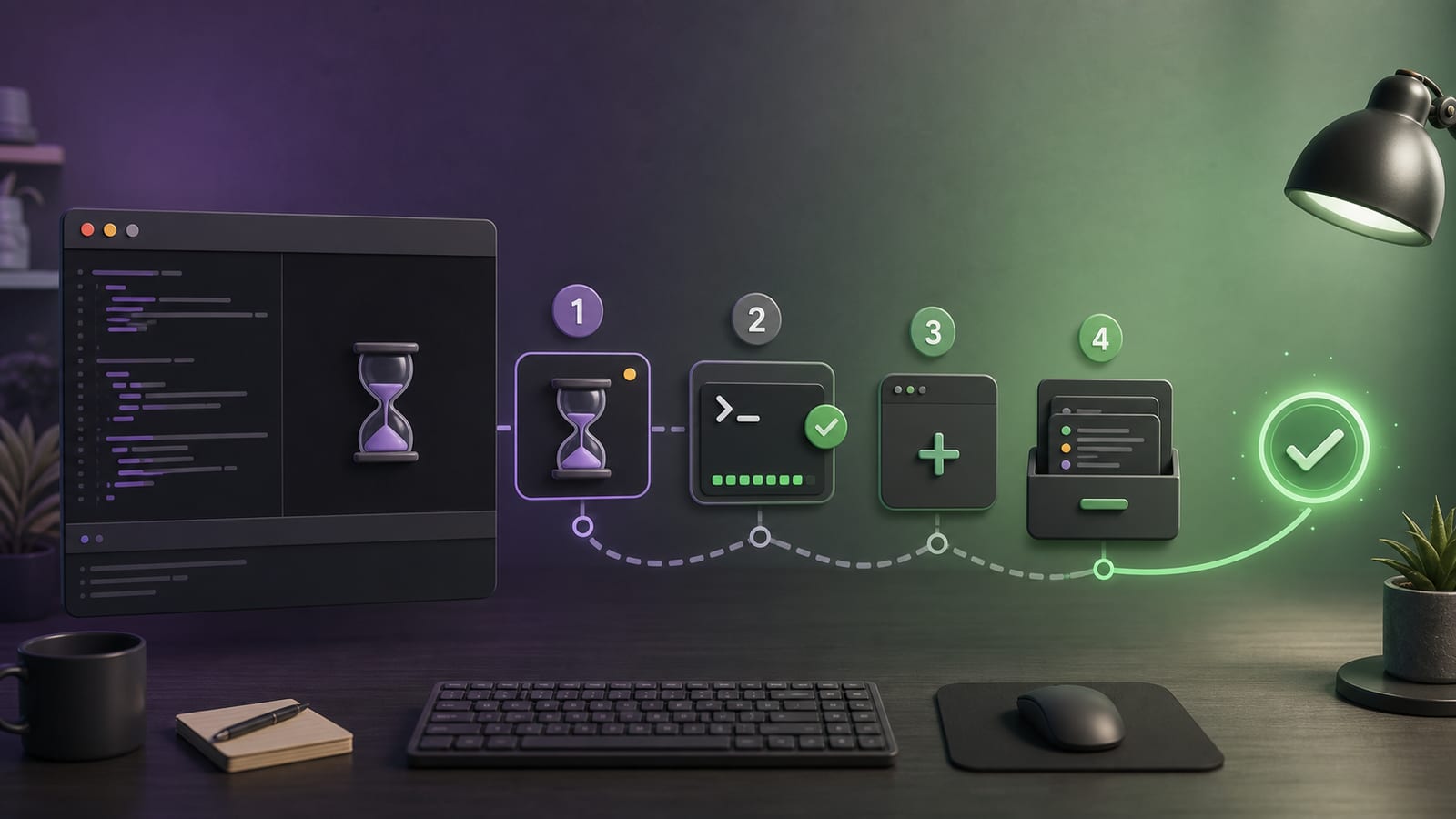
If Codex is stuck and unresponsive, do not send the same message repeatedly. Confirm in order whether it is waiting for approval, background commands, and the terminal are healthy, then narrow the task to a new session; Only restart and check the log if all are ineffective.
First layer: It might just be waiting for your approval
Check the interface for pending approvals. When installing dependencies, accessing the network, writing files outside the workspace, or executing restricted commands, Codex may pause instead of causing errors. After processing approval, observe the progress; do not repeat the same write command on another terminal at the same time.
Entering /ps in the CLI lets you view the background terminal and recent output. If the task has lost its meaning or the process is clearly suspended, use /stop to stop the current session in the background terminal and then issue a smaller command.
Layer 2: Determine whether Codex is stuck or the terminal is stuck
Execute on the integrated terminal:
pwd
git status
If it can return immediately, it means the terminal and repository are basically normal, and the issue is more likely in the current chat, approval, or specific tool. If the terminal does not respond, first close the terminal panel, then reopen it with Ctrl+反引号, repeat these two read-only commands, and confirm the current directory and branch.
When encountering tests or builds with no output for a long time, don't judge failure solely by the interface being stuck. First, check the process status from the /ps; If there really is no progress, stop and run that test separately, handing the full error over to Codex.
Third layer: Create a new session that allows for quick acceptance
Long sessions can accumulate a large number of logs and irrelevant context. Create a new session with /new, providing only the current objective, relevant files, and a verifiable command, such as:
Only target this one failed test. Reproduce and explain the root cause first, without modifying the file; After confirming, only perform minimal fixes.
This approach helps determine if the lag comes from the old session. If the new session is normal, decide to return to the original task with /resume or continue directly in the new session. If the conversation is only too long but still available, you can perform /compact to compress history.
If you need to continue reporting errors, bring the diagnosis
Run codex doctor --summary to get summaries of installation, configuration, authentication, Git, terminal, and session health. macOS app logs are saved by date in ~/Library/Logs/com.openai.codex/ by default; session logs are saved by default in ~/.codex/sessions. Remove tokens, personal information, and private code before sharing.
If the terminal restart and short session are ineffective, wait for the running task to finish before restarting the application to avoid accidentally stopping normal background tasks.