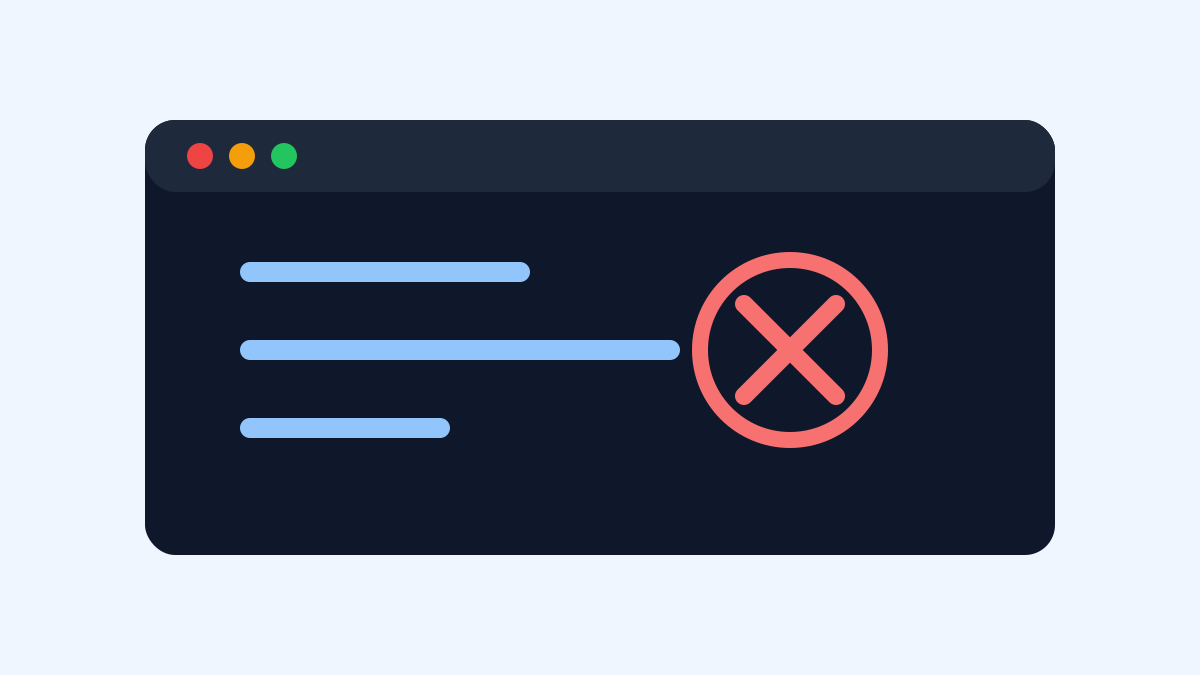
The Codex prompts 'command not found', which is usually not an account issue, but rather that the CLI is not installed in a location that the current shell can find. Check which environment you are running in: macOS, Linux, Windows PowerShell, and WSL have different PATHs.
Check whether the installation is successful
If you are installing via npm, first run 'npm list -g --depth=0' to see if there is '@openai/codex'. The basic installation method given in OpenAI Help is to install the Codex CLI globally, so you should be able to run 'codex' directly after the installation is completed.
If there is a package in the list but the command still cannot be found, continue to check the npm global bin path: 'npm bin -g' or 'npm config get prefix'. Then see if this directory is in the 'PATH'.
WSL and Windows are the easiest to mix
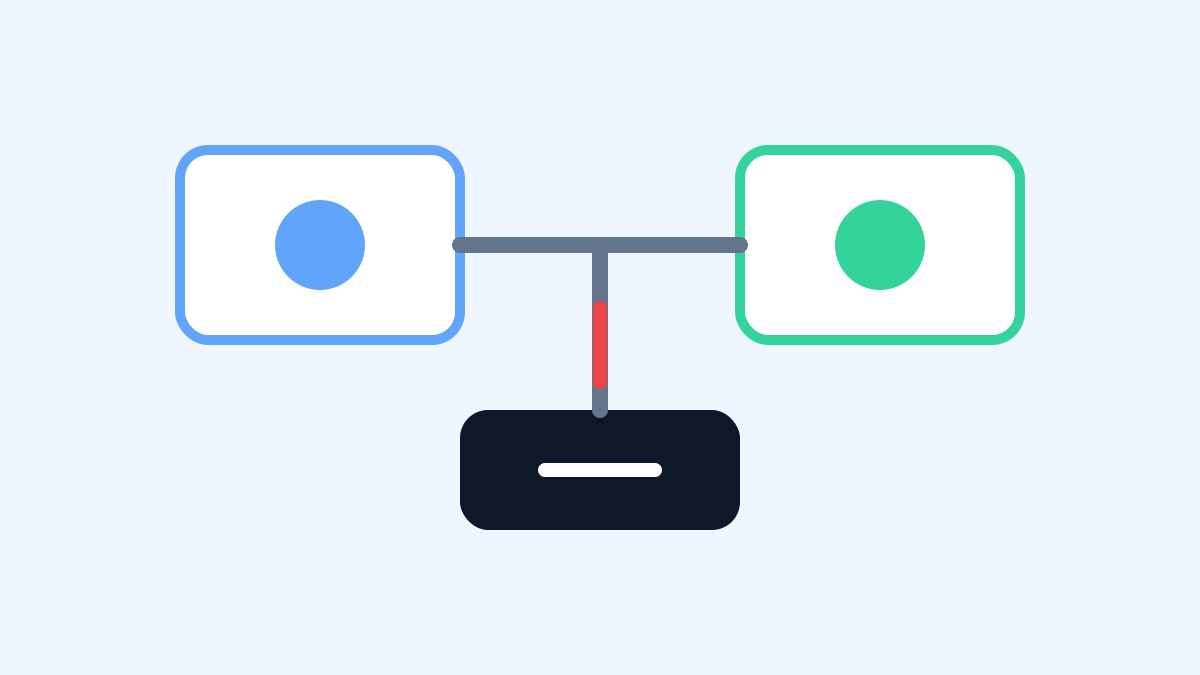
It's especially common on Windows: you have Codex installed in PowerShell, but it's running in WSL; Or install it in WSL, but look for it in Windows Terminal. Node, npm, and PATH are different on both sides.
The solution is simple: use Codex in any terminal, install it in which terminal. The WSL project is recommended to be installed and run within WSL, and not to mix Windows npm.
Also check the shell cache
zsh, bash sometimes cache the command path. Restart the terminal after installation, or run 'hash -r'. If you have just changed '.zshrc' or '.bashrc', reload the configuration as well.
If the company's computer restricts the installation of global npm, you can use npx to run temporarily instead, or ask the administrator to authorize the Node global directory. Don't hard change the permissions issue to 'sudo npm install -g', which can leave you with subsequent updates and file permissions.
Fastest troubleshooting sequence
First, check whether it is installed, then look at the global bin path, and then look at the PATH, and then check whether it is running the wrong terminal environment. Only these are normal, and then check for account login or network problems.