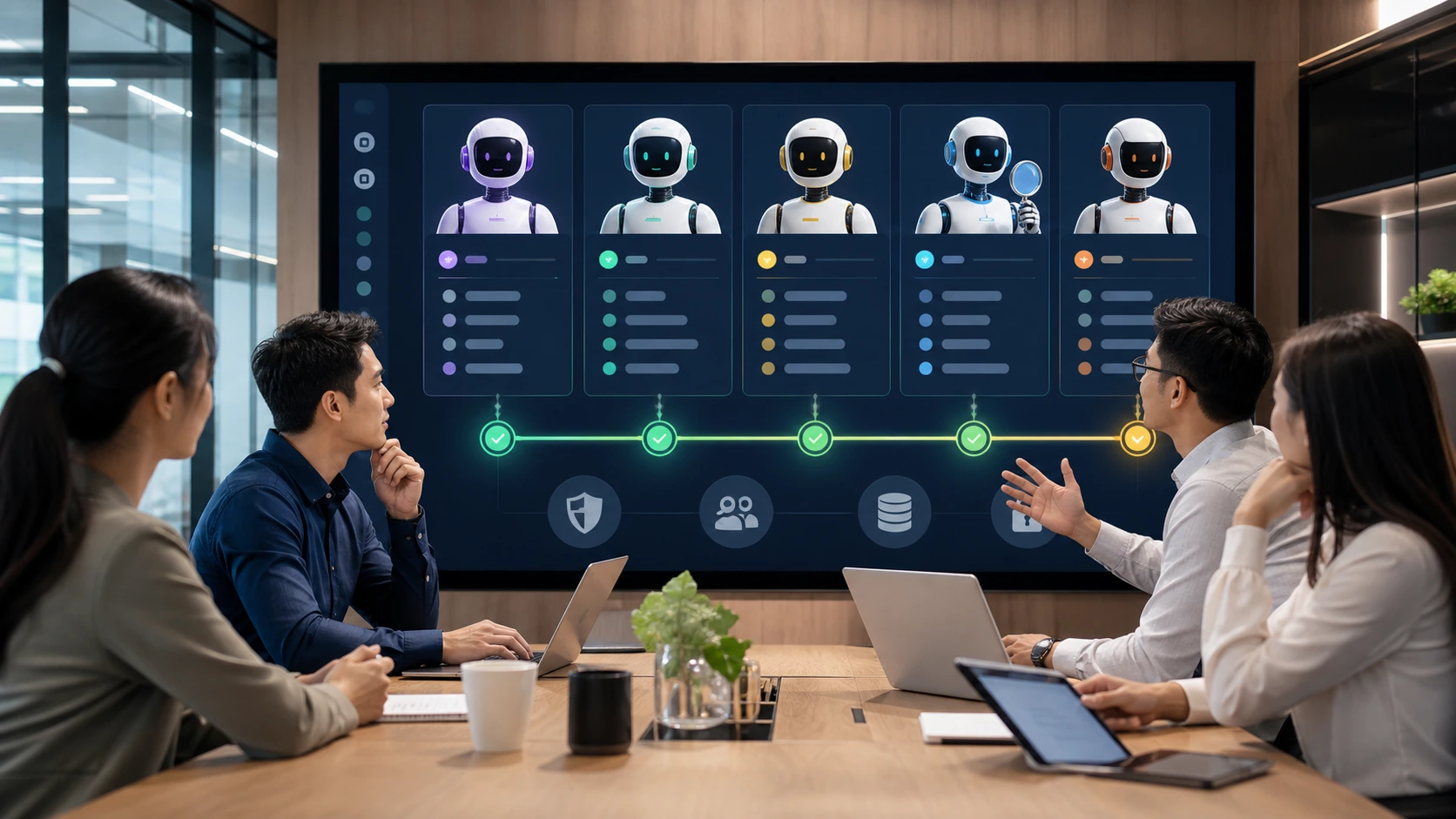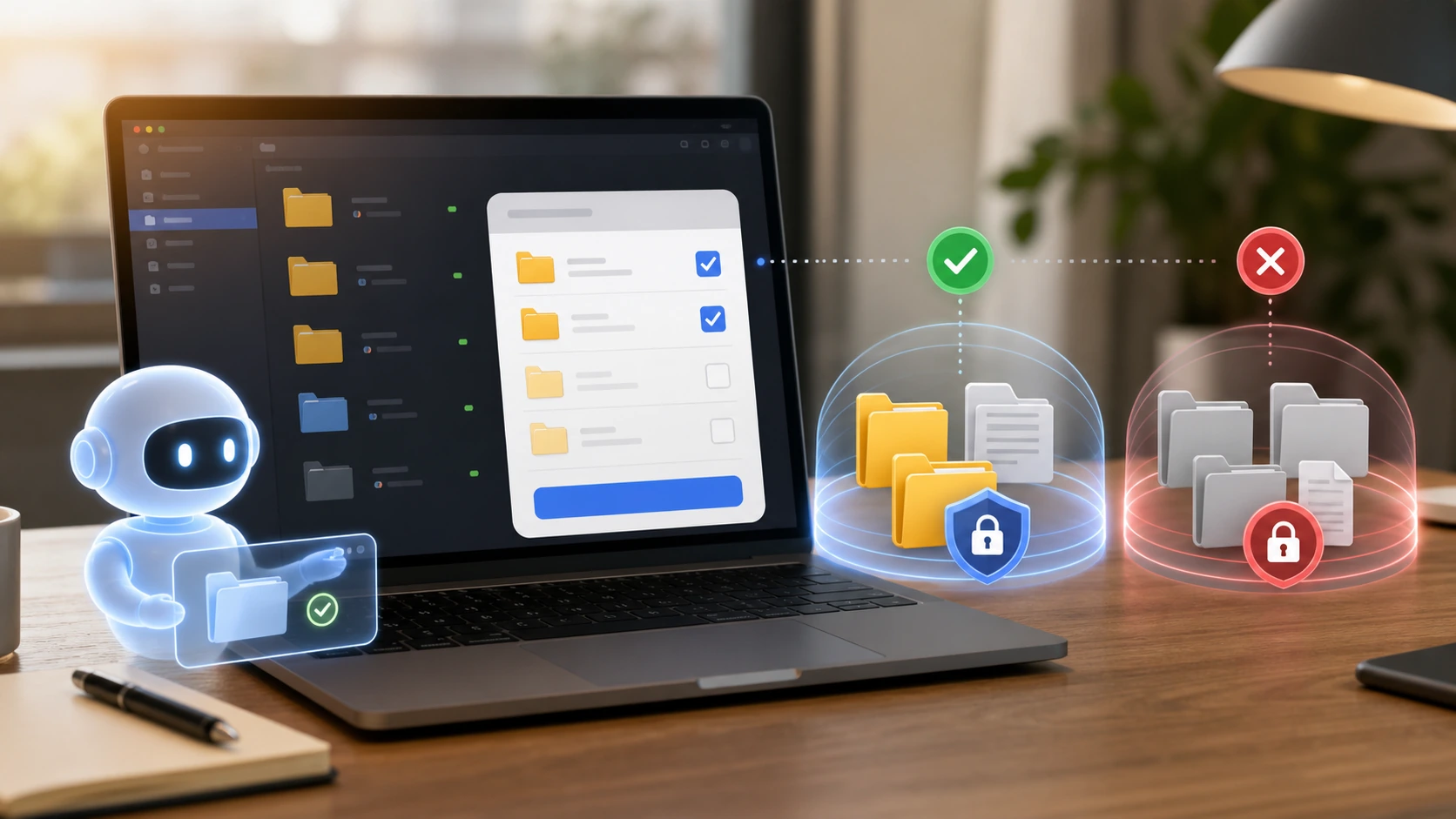
By default, OpenClaw recommends using a standalone openclaw browser profile, which will not touch your daily Chrome profile. What you really need to be wary of is to switch to a user profile or a remote CDP, as that could connect to a real browser environment where you're logged in, with traces of cookies and a password manager.
Difference between the two browser modes
| mode | What is suitable for | Risk |
|---|---|---|
| openclaw profile | Web page inspection, automated testing, general browsing tasks | Relatively isolated and suitable for default use |
| user profile | You must visit a logged-in website or an existing tab | You will be exposed to personal login status, so you must be cautious |
| remote CDP | Remote browser or cloud browser | Additional confirmation of network, certification, and reach |
Practices for protecting private data
- Let the Agent complete the task in the openclaw profile first.
- When you need to log in, use a special account instead of a private master account.
- After the browser automation task ends, it checks for open pages and downloaded files.
- Don't expose your bank, password manager, or personal email master account to test agents.
Browser tools are powerful, but their strength comes from being able to operate pages like humans. As long as the page has your privacy and account permissions, the agent may also have access to it. Separating work accounts from personal accounts is the simplest and most effective security boundary.
Official open source address: https://github.com/openclaw/openclaw.
If the task must be logged in, you can create a low-privilege work account. This way, even if the automation script clicks on the wrong page, downloads a file, or submits a form, the scope of influence is limited to this work account.